
Managing Exposure Alerts
Guide to manage and customize your SpyCloud exposure alerts
Overview
Exposure Alerts help your team stay informed when SpyCloud identifies new exposures that may affect your organization. You can manage all Exposure Alert settings in one place: Settings in the SpyCloud Console under Workforce Threat Protection and Endpoint Threat Protection.
From Settings, you can:
- Turn email notifications on or off for individual Console users.
- Send alerts to additional recipients, including shared inboxes, distribution lists, and ticketing systems, without granting Console access.
- Control alerts by asset to focus notifications on the domains and subdomains that matter most.
You can also configure your organization's email security settings to make sure SpyCloud alerts reach their intended recipients.
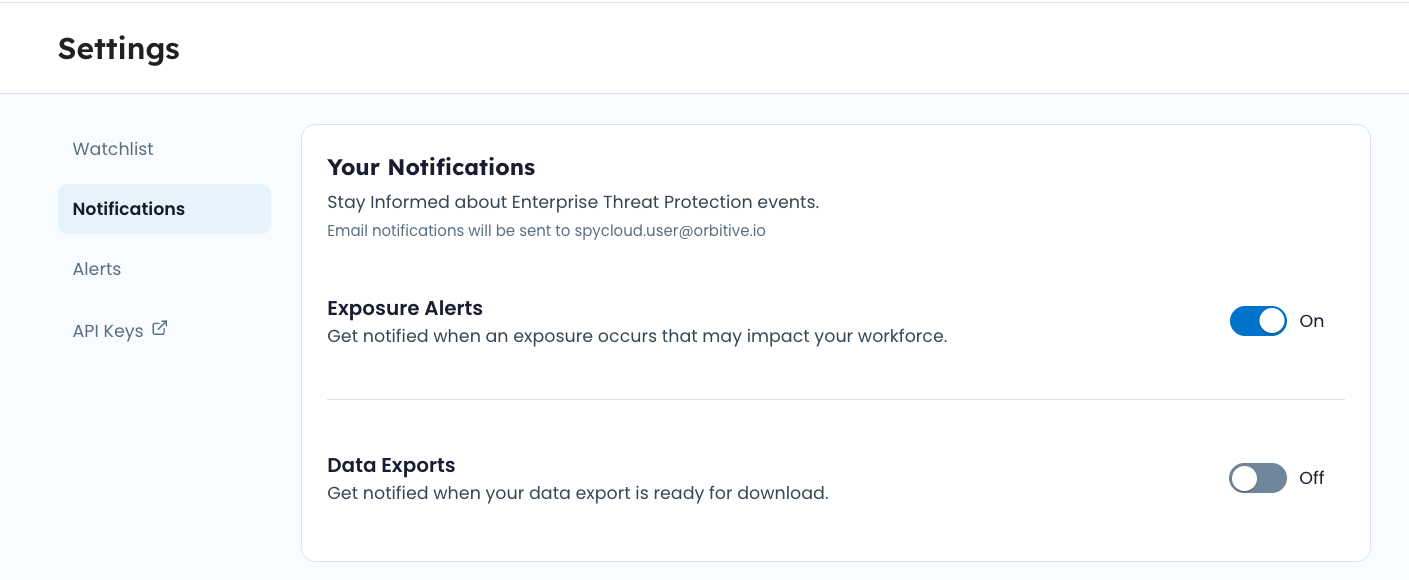
Turn Exposure Alerts on or off
Navigation: Settings > Notifications
Each SpyCloud Console user can control whether they receive Exposure Alert emails. To manage your notifications:
- Go to Settings > Notifications.
- Find the Exposure Alerts setting.
- Turn the toggle On to receive Exposure Alert emails or Off to stop receiving them.
Important: Exposure Alert notification preferences are set per user. To change another user's notification settings, that user must sign in to their account, or an authorized administrator must sign in as that user.
Turning off a user's email notifications does not remove assets from the watchlist or stop SpyCloud from tracking exposures.
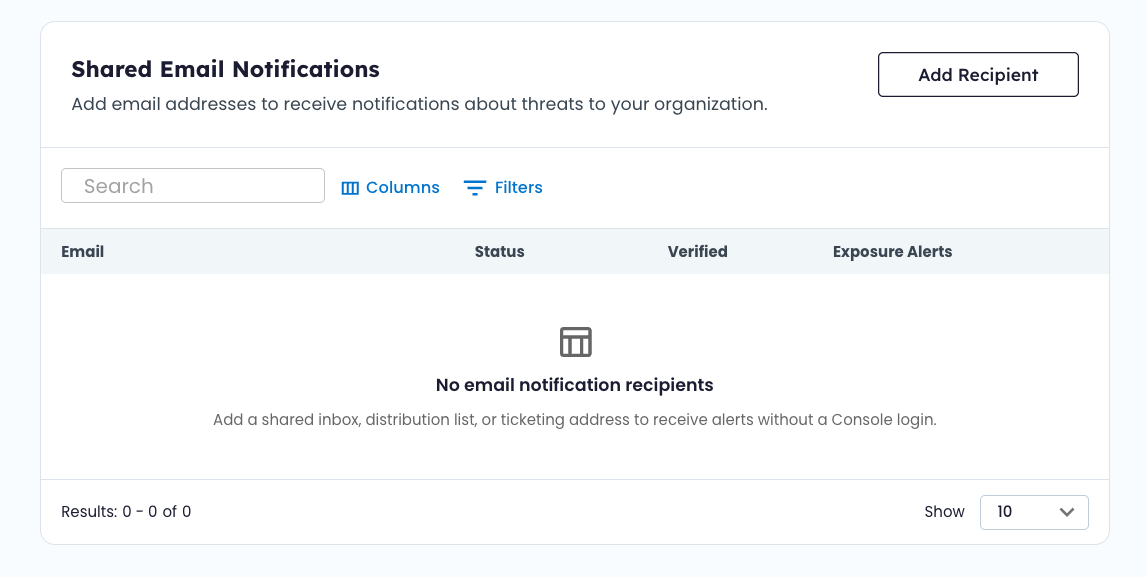
Send Exposure Alerts to additional recipients
Navigation: Settings > Notifications
You can send Exposure Alerts to recipients who don't have a SpyCloud Console account. This makes it easier to route notifications into your team's existing security workflows without granting additional users Console access.
For example, you can send alerts to:
- Shared security inboxes so multiple team members can monitor exposures.
- Distribution lists to keep the broader security team informed.
- Ticketing system email addresses to route notifications into your incident response workflows.
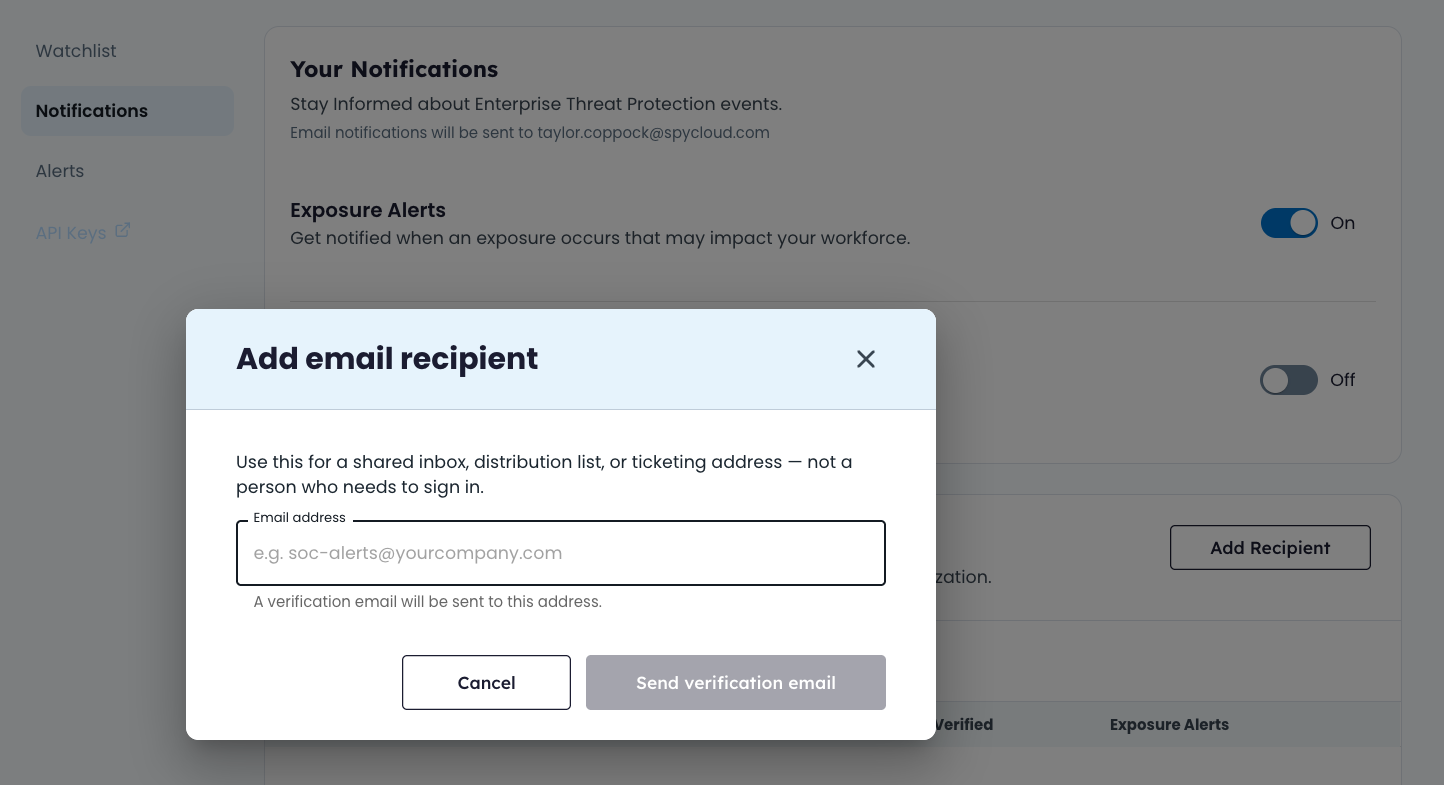
Add an email recipient
- Go to Settings > Notifications.
- Click Add Recipient.
- Enter the email address that should receive Exposure Alerts.
- Click Send verification email.
- Complete the email verification process for the recipient address.
Each recipient has an individual Exposure Alerts toggle, allowing you to manage notifications separately for each address.
Tip: Use a shared inbox or ticketing address to route Exposure Alerts to the people responsible for investigating and responding to exposures, without giving everyone direct Console access.
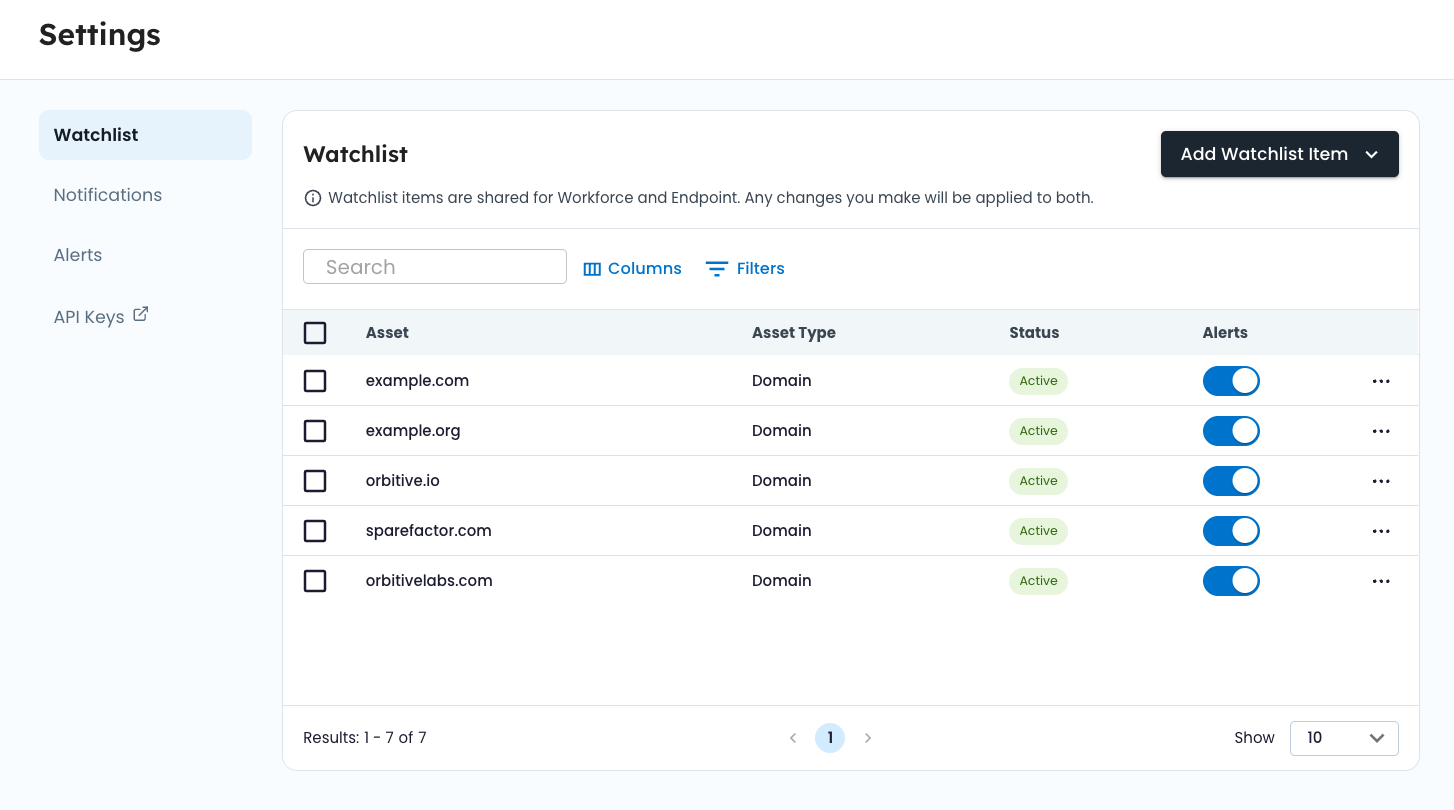
Turn Exposure Alerts on or off by asset
Navigation: Settings > Watchlist
Not every monitored asset needs to generate an email notification.
You can continue tracking assets in your watchlist while choosing which ones trigger Exposure Alerts. This helps reduce unnecessary notifications without removing assets from monitoring.
Manage notifications for a watchlist asset
- Go to Settings > Watchlist.
- Find the asset you want to manage.
- Locate the Alerts toggle in that asset's row.
- Turn the toggle On to receive Exposure Alerts for the asset or Off to stop email notifications for it.
These settings apply to assets monitored in both Workforce Threat Protection and Endpoint Threat Protection.
Tip: Keep notifications on for your primary domains and other high-priority assets. Turn them off for assets you want to continue monitoring but don't need to receive email alerts about.
Disabling alerts for an asset does not remove it from your watchlist.
Allowlist SpyCloud email domains
To continue receiving Exposure Alerts, make sure your organization's email security tools allow messages from SpyCloud's notification domains. SpyCloud is upgrading its email notification system to deliver exposure alerts faster and more reliably. As part of this upgrade, Exposure Alerts will transition to a new sending domain: spycloudalerts.com.
Required email domains
Ask your IT or email security team to allowlist both domains:
| Domain | Purpose | Action |
|---|---|---|
| spycloudalerts.com | Exposure Alerts related to monitored domains | Add to allowlist |
| spycloud.com | Product updates and important SpyCloud communications | Keep allowlisted |
Important: Keep both domains allowlisted. The new domain does not replace spycloud.com for other SpyCloud communications.
If your organization uses a shared security inbox, distribution list, or ticketing system to receive alerts, make sure the applicable email filtering policies also permit messages from the new domain.
Troubleshooting: Not receiving Exposure Alerts?
If you or another recipient aren't receiving expected Exposure Alert emails, check the following:
- Check your notification settings. Go to Settings > Notifications and confirm that Exposure Alerts are turned on for the intended recipient.
- Check the asset's alert settings. Go to Settings > Watchlist and confirm that the Alerts toggle is on for the relevant asset.
- Verify additional recipients. If you're sending alerts to a shared inbox, distribution list, or ticketing address, confirm that the recipient has completed email verification.
- Check your email allowlist. Confirm that both spycloudalerts.com and spycloud.com are allowed by your organization's email security tools.
- Check spam and quarantine folders. Review your organization's email filtering and quarantine settings for blocked or filtered messages.
If you've confirmed these settings and still aren't receiving expected notifications, contact SpyCloud Support for assistance.
Updated about 9 hours ago