
Exporting Records
HOW TO EXPORT EXPOSURE RECORDS
Exporting Data
Workforce Threat Protection allows you to export exposure records for reporting, analysis, and integration with external workflows.
Exports reflect the currently selected record type, filters, and scope within the All Records or Recent Records views.
This guide explains available export types, common use cases, and export lifecycle behavior.
📌 When to Use Exports
Organizations use exports in different ways depending on their security processes and tooling.
Common use cases include:
- Reviewing exposed credentials outside the console
- Supporting password reset workflows
- Enriching SIEM or case management systems
- Tracking malware-related exposure separately
- Providing summary reporting to internal stakeholders
- Supporting audit or documentation requirements
Exports provide structured data so teams can apply their own internal processes for remediation.
📍 Where Exports Are Initiated
Exports can be generated from:
- All Records – Export filtered or complete datasets
- Recent Records – Export newly ingested or updated records
The export reflects:
- Selected record type tab
- Active filters
- Applied date range
If no filters are applied, the export includes all records visible within the selected tab.
🧾 Export Types
Workforce Threat Protection supports multiple export types to accommodate different workflows.
| Export Type | Description |
|---|---|
| All | All records across all record types |
| All Corporate | All corporate records associated with your watchlist domains |
| All Infected Employee | All infected employee records associated with your domains |
| Identifier | All record types associated with a specific watchlist identifier |
| Identifier – Corporate | Corporate records for a specific identifier |
| Identifier – Infected Employee | Infected employee records for a specific identifier |
| Domain | Records associated with a specific domain |
| Records associated with a specific email address | |
| IP | Records associated with a specific IP address |
| Source | Records originating from a specific source catalog entry |
| Recent | Recently ingested records |
| Asset | Records for a specific asset |
🧰 Export Workflow
To generate an export:
- Navigate to the All Records or Recent Records tab.
- Apply any desired filters (record type, severity, identifier, source, date range).
- Click Export.
- Confirm export parameters.
- Submit the export request.
The export is queued and processed asynchronously.
⏱ Export Status
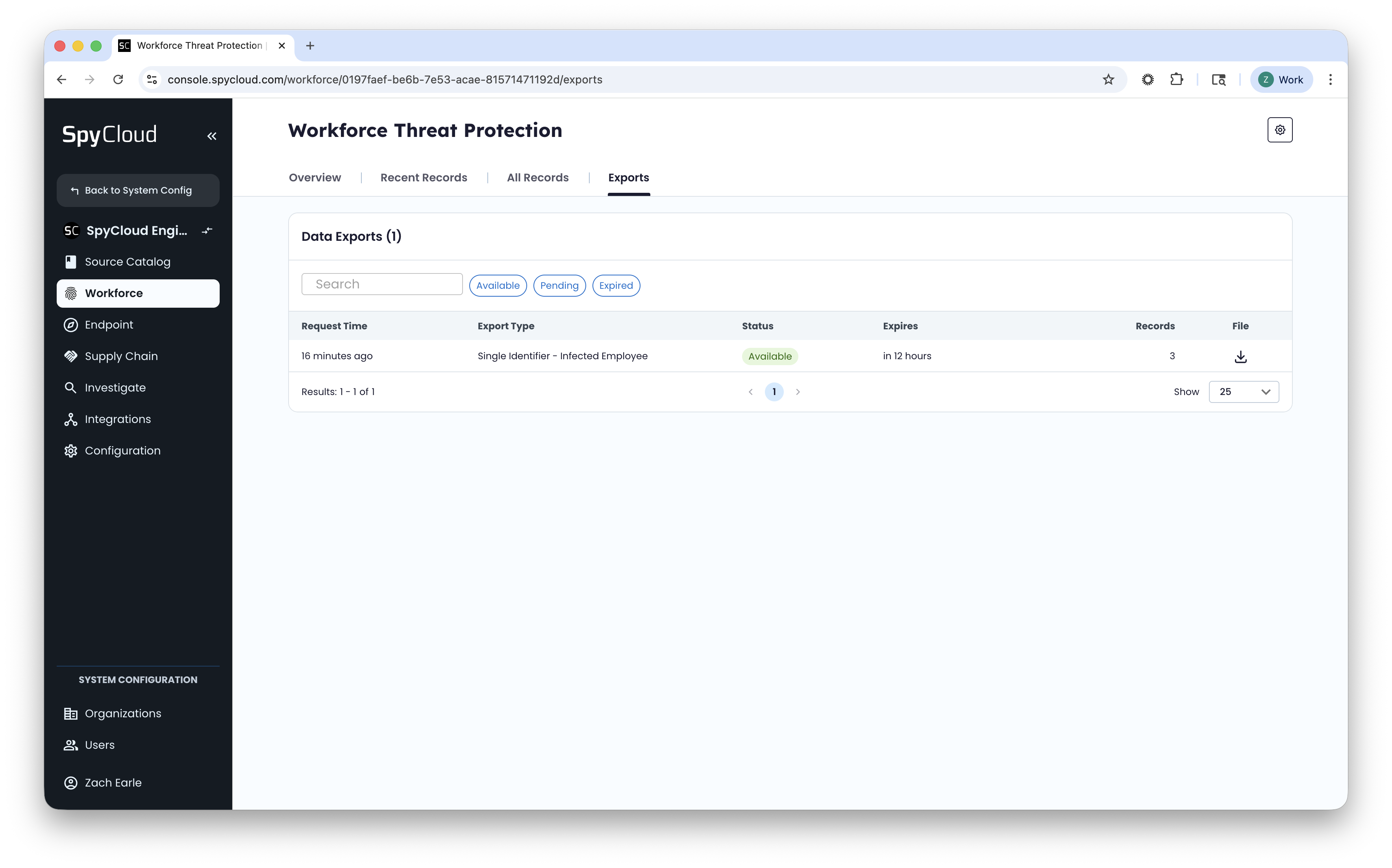
Export progress can be monitored in the Exports tab.
Each export includes a status:
- Pending – The export has been requested and is processing.
- Available – The export file is ready for download.
- Expired – The export file is no longer available for download.
- Failed – The export did not complete successfully.
Exports are available for a limited time before expiring.
📦 Data Included in Exports
Export files include structured record data based on:
- Record type
- Source type
- Severity
- Identifiers
- Discovery dates
- Available credential fields
- Sighting counts
Field availability varies depending on record type and source.
For field definitions and data structure, see Data Model & Record Types.
⚙️ Operational Notes
- Exported datasets reflect only verified, active watchlist identifiers.
- Removing or disabling watchlist items changes future export results.
- Filters applied at export time determine scope.
Exports provide a portable view of your workforce exposure data. How the data is used — whether for credential hygiene programs, malware response workflows, or reporting — depends on your organization’s security processes.
Updated 6 months ago