
Advanced | Configuring Remediations
ADG supports the creation of Remediation Policies that can be applied during scans.
Remediation Policies determine:
- Which actions ADG will take when a password match is found
- Which email notifications ADG will send for matches
- Which users are excluded from those actions/notifications
- Which optional emails are sent to excluded users
Managing Remediation Policies
Navigate to: Advanced Settings → Remediations
From here, you can:
- Create a new Remediation Policy
- Edit an existing policy
- Delete a policy (⚠️ cannot delete if it’s in use by a scheduled scan)
You can also create/edit Remediation Policies directly from Manual Scan or Scheduled Scan configuration pages.
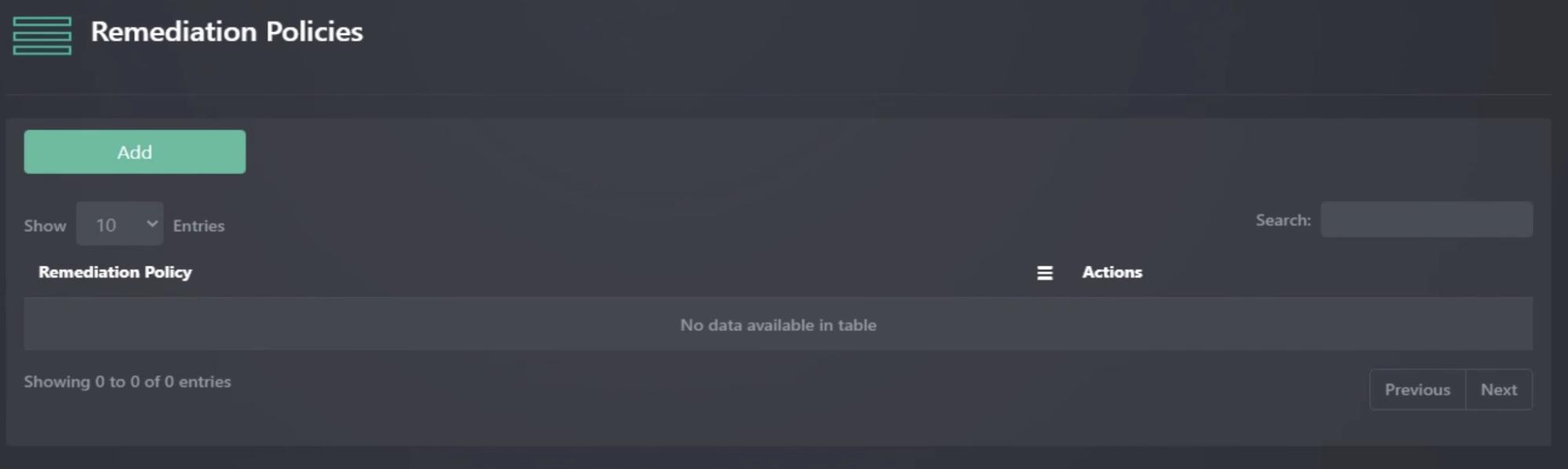
Creating a Remediation Policy
- Click Add
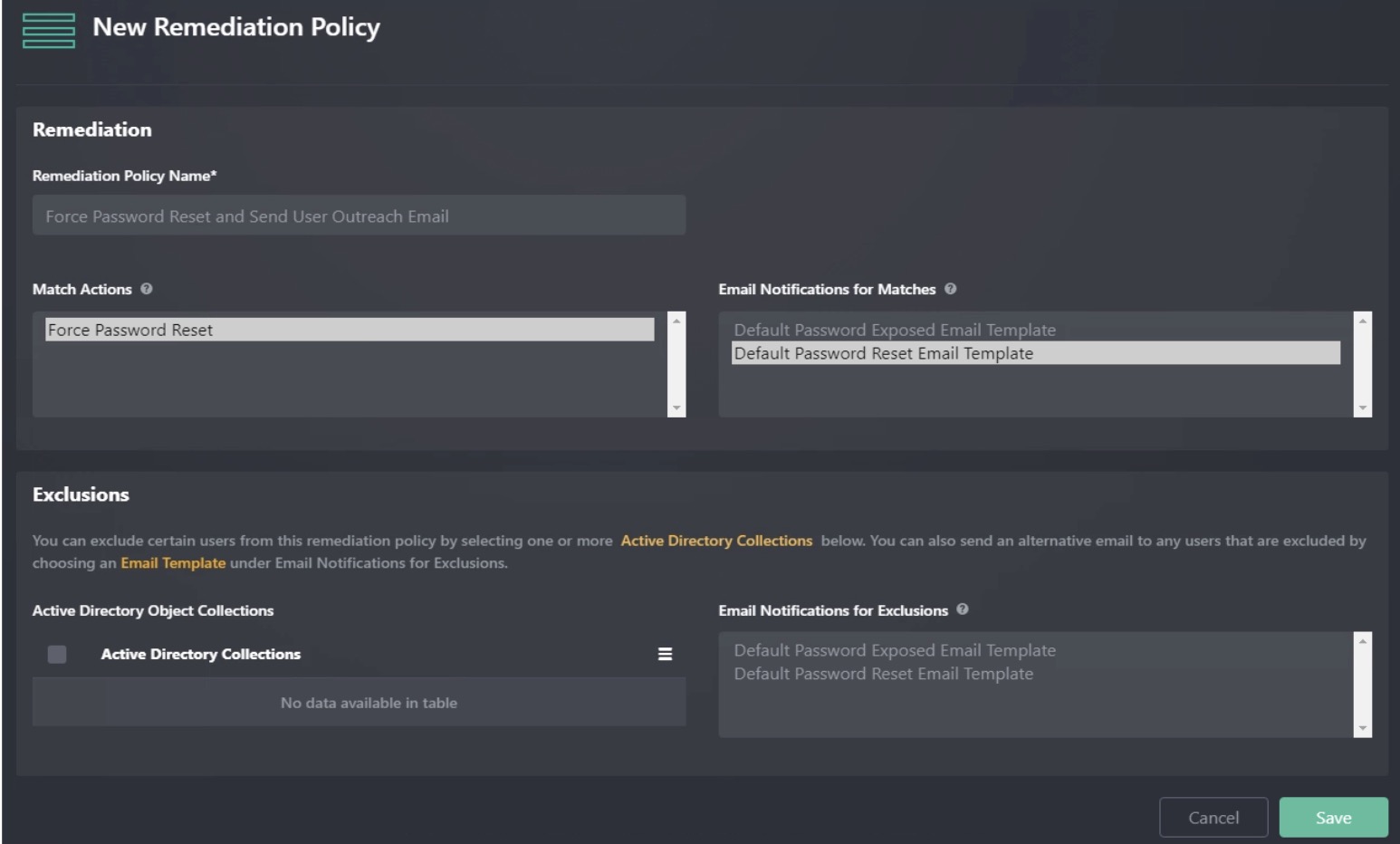
- Enter a unique name in Remediation Policy Name
- Best practice: Use descriptive names like
- Force Password Reset and Send User Outreach Email
- Disable Account – No Notification
- Best practice: Use descriptive names like
Match Actions
Choose which actions to perform if a password match occurs:
- Disable User
- Force Password Reset
- Okta Password Reset (requires Okta setup under Configuring Okta)
Webhook Actions
Send match notifications to external systems such as SIEM, SOAR, or ticketing platforms using webhooks.
Once a webhook is configured under Settings → Webhooks, you can select it as a Match Action in a Remediation Policy. You can select multiple webhooks and combine them with other remediation actions, such as disabling a user or forcing a password reset.
For setup instructions, authentication options, and payload details, see Advanced | Configuring Webhooks.
Email Notifications for Matches
- Choose one or more User-type Email Templates
- These will be sent to affected AD users when their accounts match
Exclusions
- Select zero or more AD Object Collections to exclude from remediation
- Example: Exclude Service Accounts or Executive Accounts
👉 See Active Directory Object Collections for more details.
✉️ Email Notifications for Exclusions
For excluded users, you may also configure emails to notify them using one or more templates.
This lets you track excluded accounts without taking remediation actions.
Saving the Policy
Once defined, click Save.
Your policy will then be available when running either:
- Manual Scans
- Scheduled Scans
Updated about 1 month ago