
How It Works & Set Up
SpyCloud VIP Guardian helps you extend your employee account takeover prevention strategy to key executives' personal accounts, without invading their privacy. Empower your executives to lock criminals out of vulnerable accounts by giving them visibility of their own breach exposure with SpyCloud.
⚙️ How It Works
-
Easily deploy to your executives with privileged access with one link that’s unique to your organization.
-
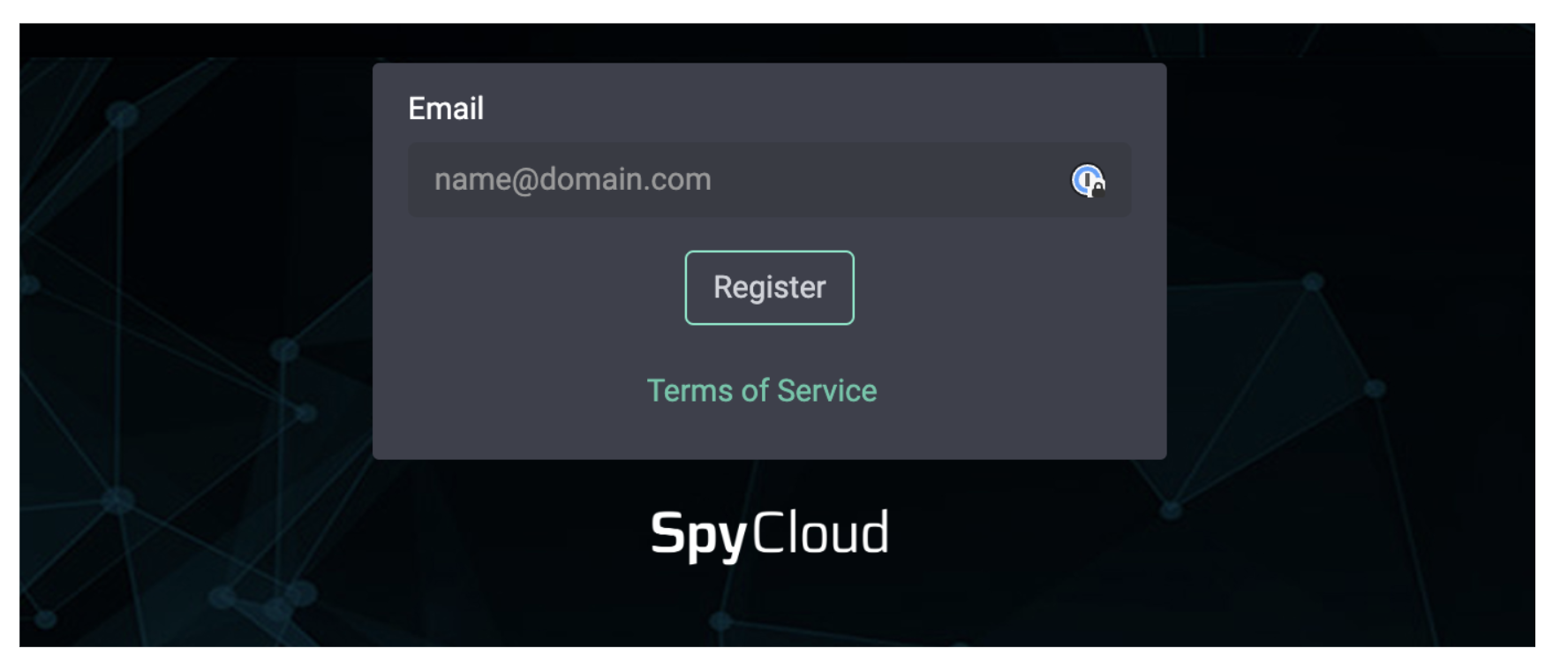
To control access to the service and prevent abuse, employees must register using an email address from a verified domain in your watchlist (ex, [email protected]).
-
After creating an account, each user can verify and monitor up to 10 personal email addresses for breach exposures.
-
Executives can view their exposure data within the portal and will receive an email alert when one of their email addresses appears in a new data breach.
-
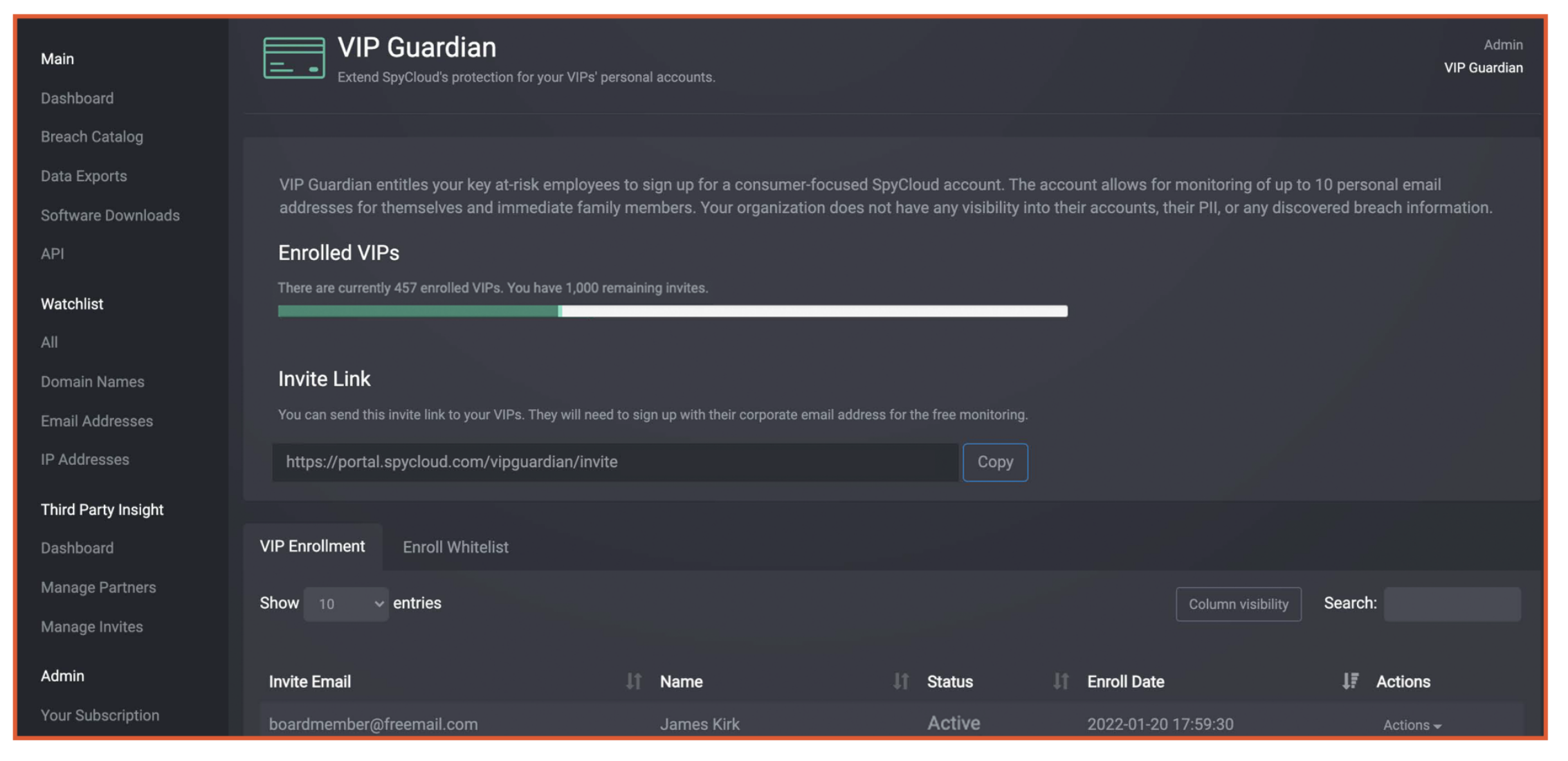
Track how many executives register for the service within your enterprise portal.
Note: For privacy, executives’ personal information (email addresses, passwords, PII, etc) will not be accessible by your organization.
🛠️ Setting Up VIP Guardian
To get started with VIP Guardian, you must have this enabled for your account & have administrator access.
Unsure if you have this set up? Reach out to Support.
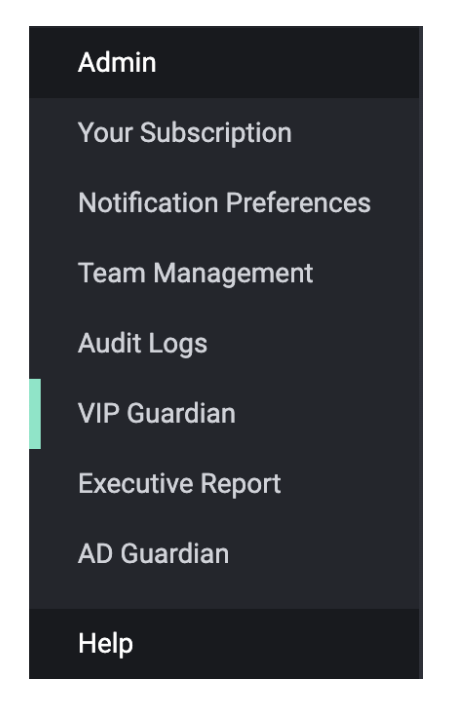
- Head into your VIP Guardian Tab by navigating the left-hand Menu
-
You will see a link that is unique to your Organization, this is your invite link. You can share this with any emails that have been added to your Enroll Whitelist.
-
Adding an email to your Whitelist:
It is important to note that the invite link will only work if these emails have been added to your Enroll Whitelist as a security measure. Select 'Add Email' to expand your enroll list.
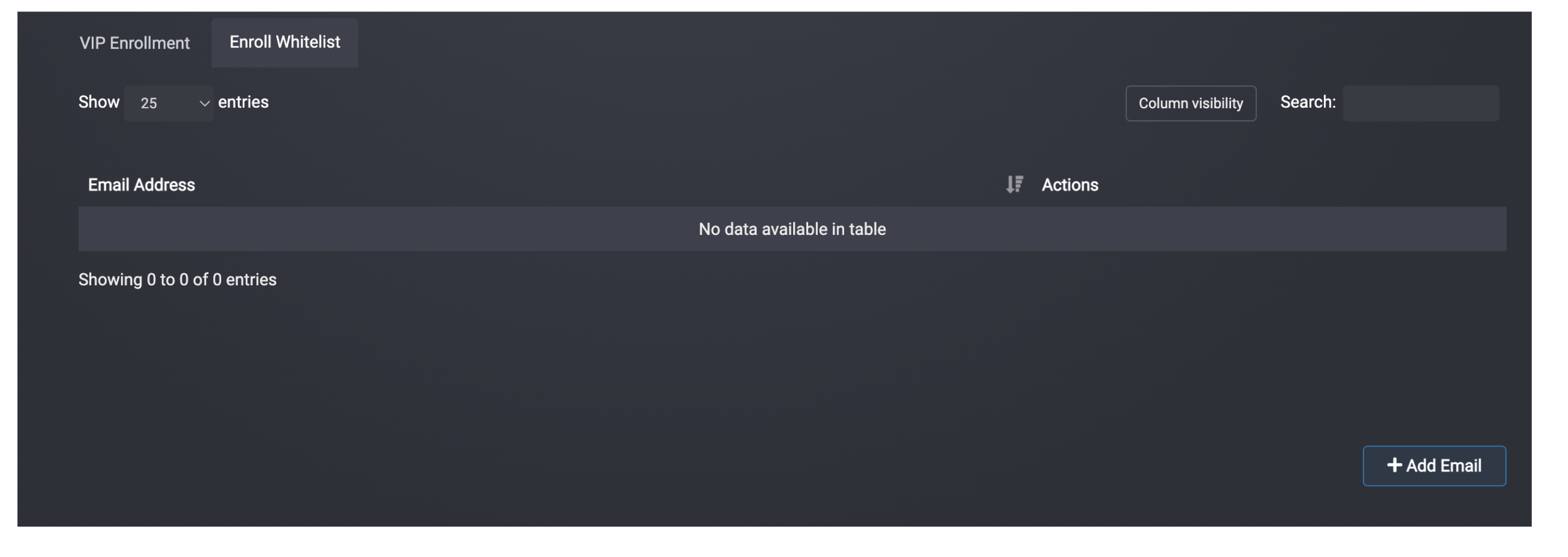
Once you've entered the email address, ensure you save these changes by selecting 'Update Whitelist'.
Made a mistake? just select actions, delete to remove the email from your Organization.
- Once you've configured your Enroll list, your link will be enabled & your VIP's can register
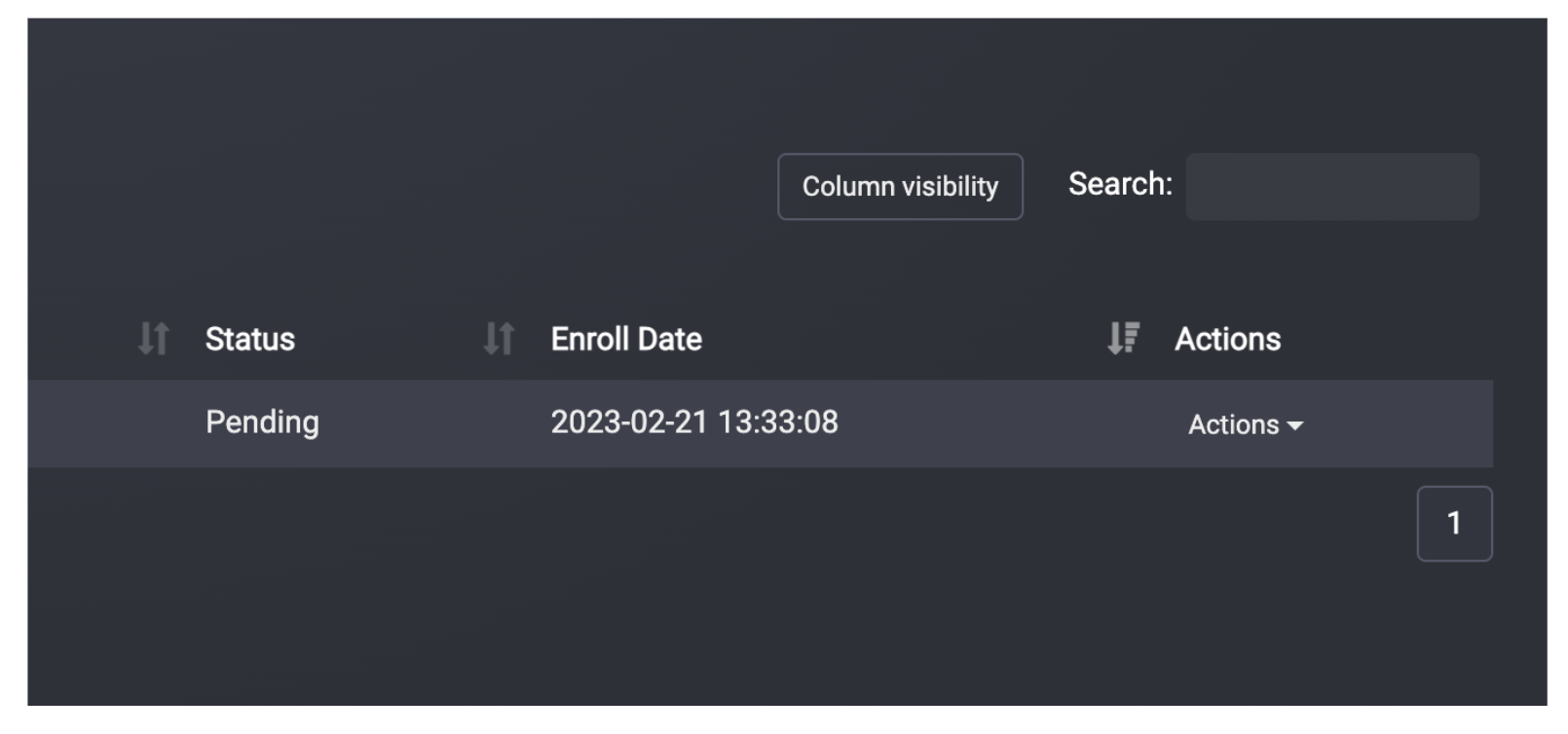
- To manage your invitations – you can view whether your invites are pending, or accepted in your VIP Enrollment Tab. From here, you can update, delete and manage your invites.
👀 What My VIPs See?
- Once they accept their invitation, they are prompted to set a password
- They will be able to view their breach dashboard for their sign-up email
- Your VIPs can add their email addresses to monitor & remediate their exposures
Updated about 1 year ago