
SpyCloud Investigations - Splunk
Technical instructions on how to deploy and run queries in SpyCloud's Investigation app for Splunk:
Version: 1.2.0
Date: April 2026
Date: April 2026
Introduction
The SpyCloud Investigations App for Splunk allows users to query and interact with data from the SpyCloud Investigations API.
Contents
The integration includes:
- Visual Query UI to allow querying the SpyCloud Investigations API data from within Splunk, including visualizations and export capabilities.
- Two custom search commands for use within SPL:
- scinvget – a generating custom command used to search for data within the SpyCloud dataset
- scinvsearch – a streaming custom command used to enrich existing data within the SpyCloud dataset
Requirements
-
A Splunk license and compatible version of:
- Splunk Enterprise or Splunk Cloud
- Platform Version: 10.3, 10.2, 10.1, 10.0, 9.4, 9.3, 9.2, 9.1
- CIM Version: 8.x, 6.x, 5.x, 4.x, 3.x
-
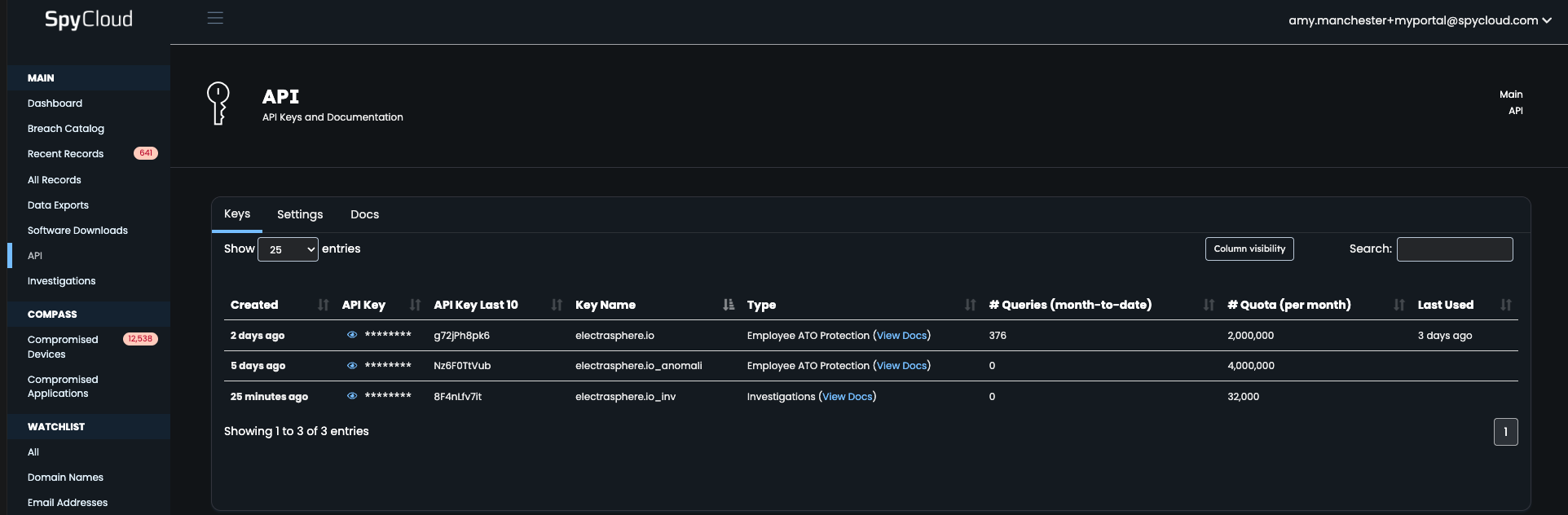
A SpyCloud Investigations license with an API key (available at: https://portal.spycloud.com/api)
Installation
There are two main ways to install the integration:
- Download from SplunkBase or the SpyCloud Customer Portal and install manually
- Install via Splunk by selecting Find More Apps and searching for SpyCloud
Install from File
- Click the gear icon next to Apps
- Click Install app from file
- Select the
.splfile and click Upload - Click Set up now
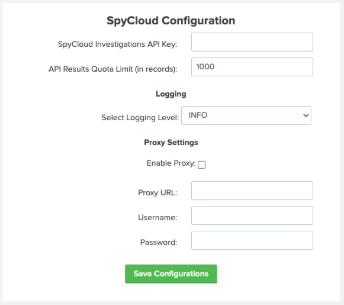
- Enter:
- SpyCloud Investigations API Key
- (Optional) Proxy settings
- Logging and API quota settings
- Click Save Configuration
After setup, the Breach Catalog will begin populating automatically.
Search Head Cluster Considerations
If using a Search Head Cluster (SHC):
- API credentials are shared across all search heads
- Configure credentials once and deploy via the deployer
- Ensure proper deployment to avoid setup redirects or alerts
Additional Configuration
Access via SpyCloud Configuration the app.
You can update your API key anytime.
API Results Quota Limit
- The API enforces monthly quota limits
- You can configure a maximum number of records returned
- Each API call can return up to 1000 results
Example:
- 9,600 results = 10 API queries
Logging
Available logging levels:
- DEBUG
- INFO
- WARN
- ERROR
Running a Query
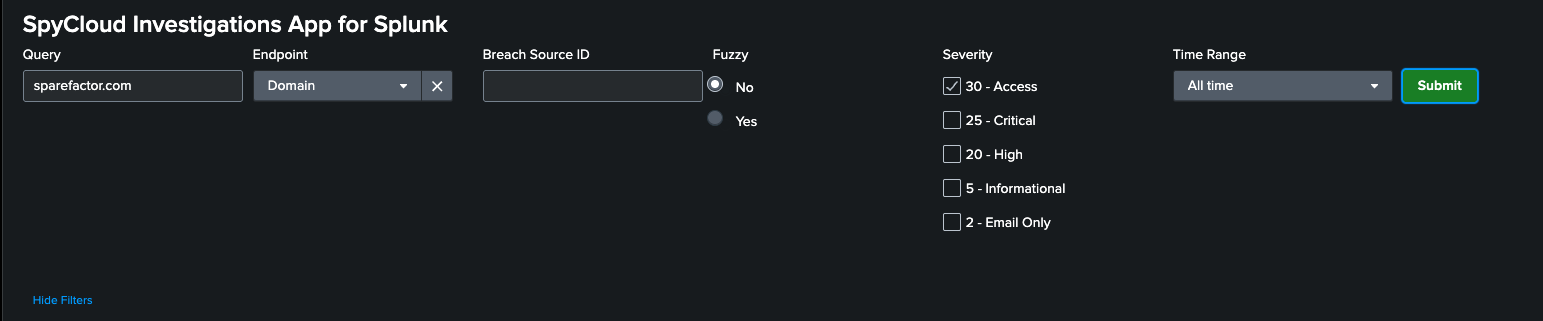
To run a query:
- Select options and click Submit
Fields
- Query – search term (email, domain, username, etc.)
- Endpoint – API endpoint to query
- Breach Source ID – optional filter
- Fuzzy – enables fuzzy search
- Severity – filter by severity
- Time Range – define search window
Notes
- Errors show as a red triangle
- Common issues:
- Exceeding quota
- API key restrictions
Additional Features
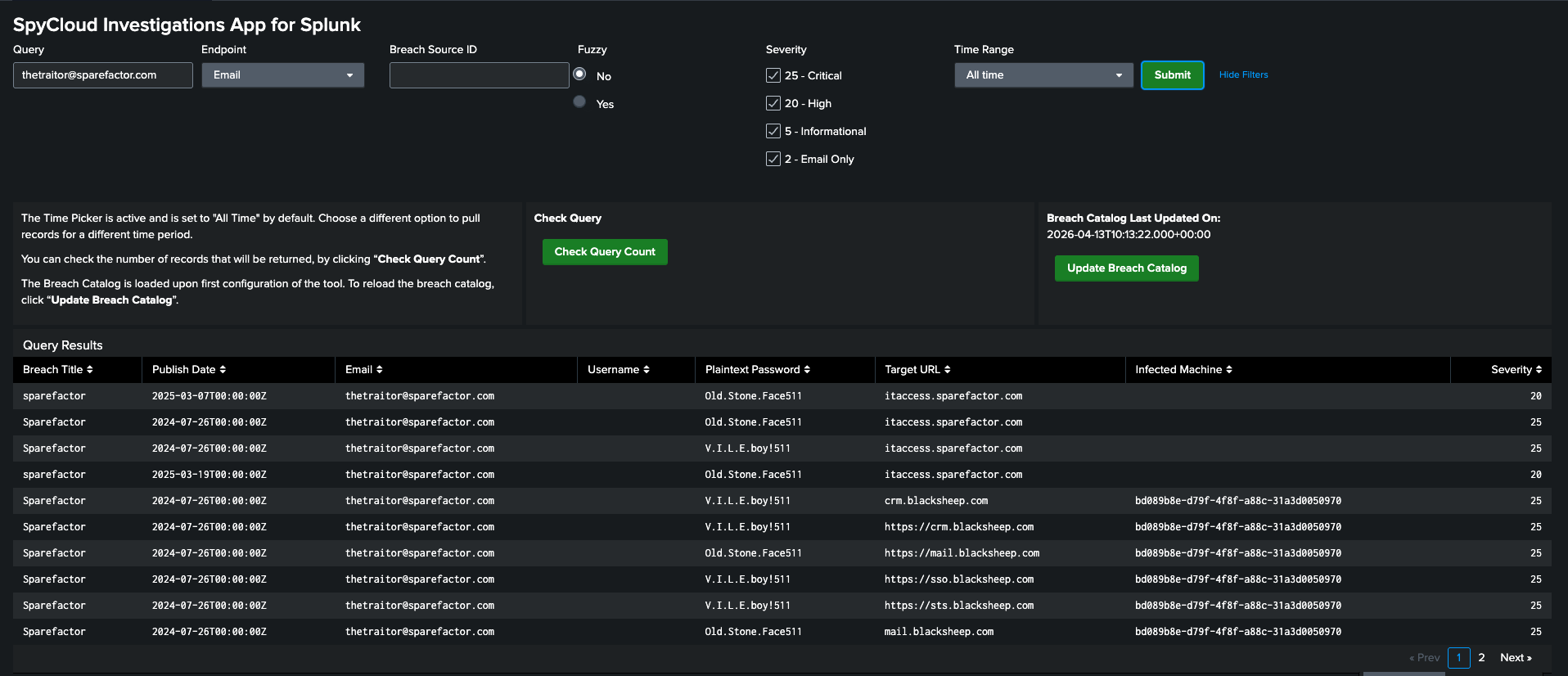
- Check Query Count – preview result size before running
- Export results (CSV, XML, JSON)
- Open query in Splunk search for further analysis
If your query is successful, you will see the results and can page through them
Managing Query Quota
To manage API usage:
- Set max record limits in configuration
- Use Check Query Count before running queries
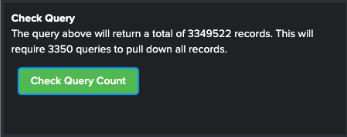
If a query exceeds limits:
- A warning appears in the UI
- You can:
- Refine the query
- Increase the quota limit
Managing the Breach Catalog
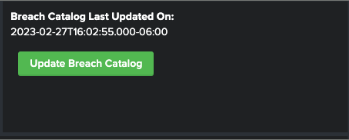
- Populated during initial setup (~38,000+ entries)
- Requires multiple API queries
Options
- View last updated timestamp in UI
- Click Update Breach Catalog to refresh
⚠️ Note: Updating consumes API quota
Using the scinvsearch Custom Command
Example
| makeresults
| eval query="[email protected]"
| scinvsearch endpoint=email field=query fuzzy=true source_id= severity=25
| spath input=results
| fields - results
Using the scinvget Custom Search Command
Example
| scinvget endpoint=email field="[email protected]" fuzzy=false source_id= severity="25,20"Updated 3 months ago