
Saving Investigations
WITHIN SPYCLOUD INVESTIGATIONS MODULE
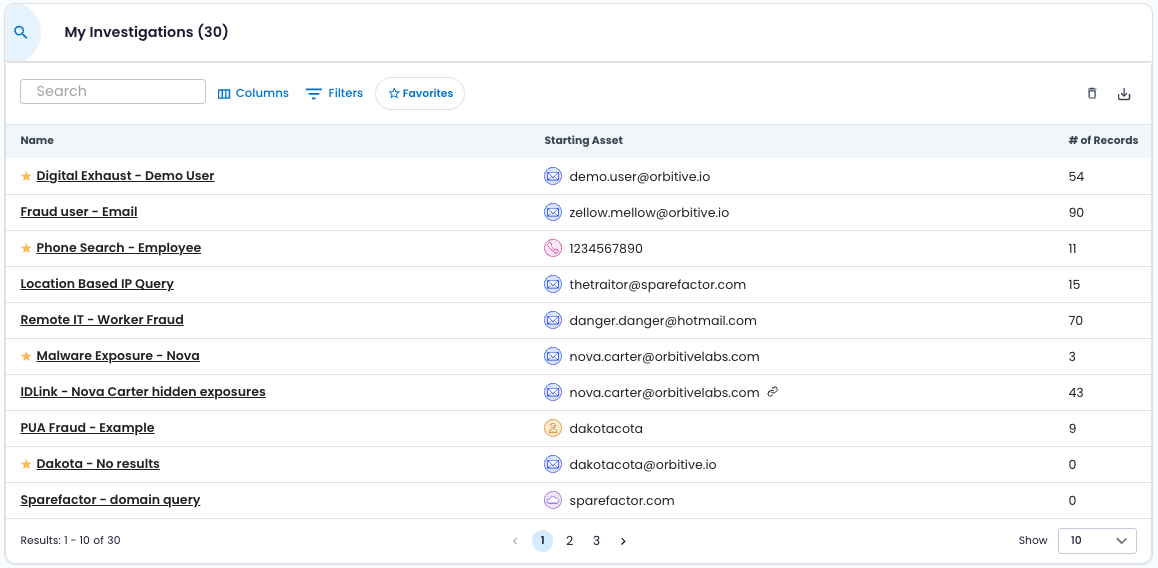
👇VIEW YOUR SAVED INVESTIGATIONS IN ONE TABLE
OVERVIEW
SpyCloud Investigations automatically saves every investigation you start. Each investigation is auto-created upon your first search and persists across sessions. Searches, pivots, record-level edits, and supported graph settings are preserved so you can resume work exactly where you left off. Note: no manual save action required.
- Every investigation is automatically created on first search
- Work is continuously autosaved
- Investigations persist across your sessions
- A new My Investigations view centralizes your saved work, directly within the module
- Controls for inline rename, delete, and starring your favorites
Saving requires either a CORE or PRO Investigations module license.
🧭 How Saving Works
Automatic Creation
When you run a Standard or IDLink investigation:
- A new investigation is created automatically
- A name is auto-generated based on the starting asset
- The investigation appears in your My Investigations home view
💾 Autosave Model
Investigations are continuously saved as you work. The following elements are persisted:
🔎 Searches
- Standard searches
- IDLink searches & Depth setting
- Filters applied to searches
🔁 Investigation Activity
- Pivots
- Record removals
- Search removals
- Timeline history
📊 Graph Settings (Persisted)
| Setting | Persisted |
|---|---|
| Layout selection | ✅ |
| Orientation | ✅ |
| Legend display | ✅ |
| Per-item legend visibility | ✅ |
| X/Y coordinates | ✅ |
| Layout changes | ✅ |
🏠 Investigations Home
Select Investigations from the left-hand navigation to access your saved investigations. The My Investigations table displays:
| Column | Description |
|---|---|
| Name | Investigation name |
| Starting Asset | Initial asset used |
| # of Records | Current record count |
| Date Created | Creation timestamp |
| Last Updated | Most recent modification |
The investigation count (e.g., My Investigations (30)) reflects the total number of saved investigations for the current user. Saved investigations are:
- User-specific
- Not visible to other users
👇RENAME YOUR INVESTIGATIONS DIRECTLY IN THE HEADER

✏️ Renaming an Investigation
You can rename an investigation in two locations:
From the Investigation Header
- Open the dropdown next to the investigation name and select Rename
- Or start typing directly in-line
From the Home Table
- Open the row options menu
- Select Rename
Changes apply immediately and are auto-saved.
👇START YOUR INVESTIGATIONS AS FAVORITES

⭐ Favorites
You can mark investigations as Favorites from the home table. Favorites:
- Are user-specific
- Can be filtered using the Favorites filter
- Do not affect permissions or sharing
- Can be removed
🗑 Deleting an Investigation
You can delete investigations directly from the home table.
Deleting an investigation:
- Displays a confirmation prompt
- Permanently removes the saved investigation
🔄 Resuming Work
To resume an investigation:
- Select Investigations from the left navigation.
- Open the My Investigations view.
- Click the investigation name.
The investigation opens in its last-used condition, with supported graph settings and activity restored.
🎯 User Benefits
Saved Investigations allow analysts to:
- Maintain long-running identity investigations
- Preserve pivots and removals
- Avoid repeating searches
- Organize work for future reference
- Resume complex cases without losing context
Investigations becomes a structured, persistent workspace for cybercrime and identity threat investigations.
Updated 8 months ago