
ADG Reporting
VIEWING ADG TELEMETRY WITHIN THE SPYCLOUD CONSOLE
Active Directory Guardian reporting in the SpyCloud Console
You can view ADG scan results and reporting directly in the SpyCloud Console. This gives you a centralized view of recent password matches, remediation activity, ADG hosts, and scan telemetry without requiring you to open each local ADG application to check its status.
Note: The SpyCloud Console provides centralized reporting and visibility into ADG activity. You'll continue to use the local Active Directory Guardian application to configure ADG, manage scan settings and remediation policies, and run or schedule scans.
View Active Directory Guardian results
ADG information appears in two places in the SpyCloud Console:
- Workforce Threat Protection gives you a quick view of recent ADG results alongside your other workforce identity exposure data.
- Identity Guardians > Credentials provides detailed ADG host and scan telemetry across your environment.
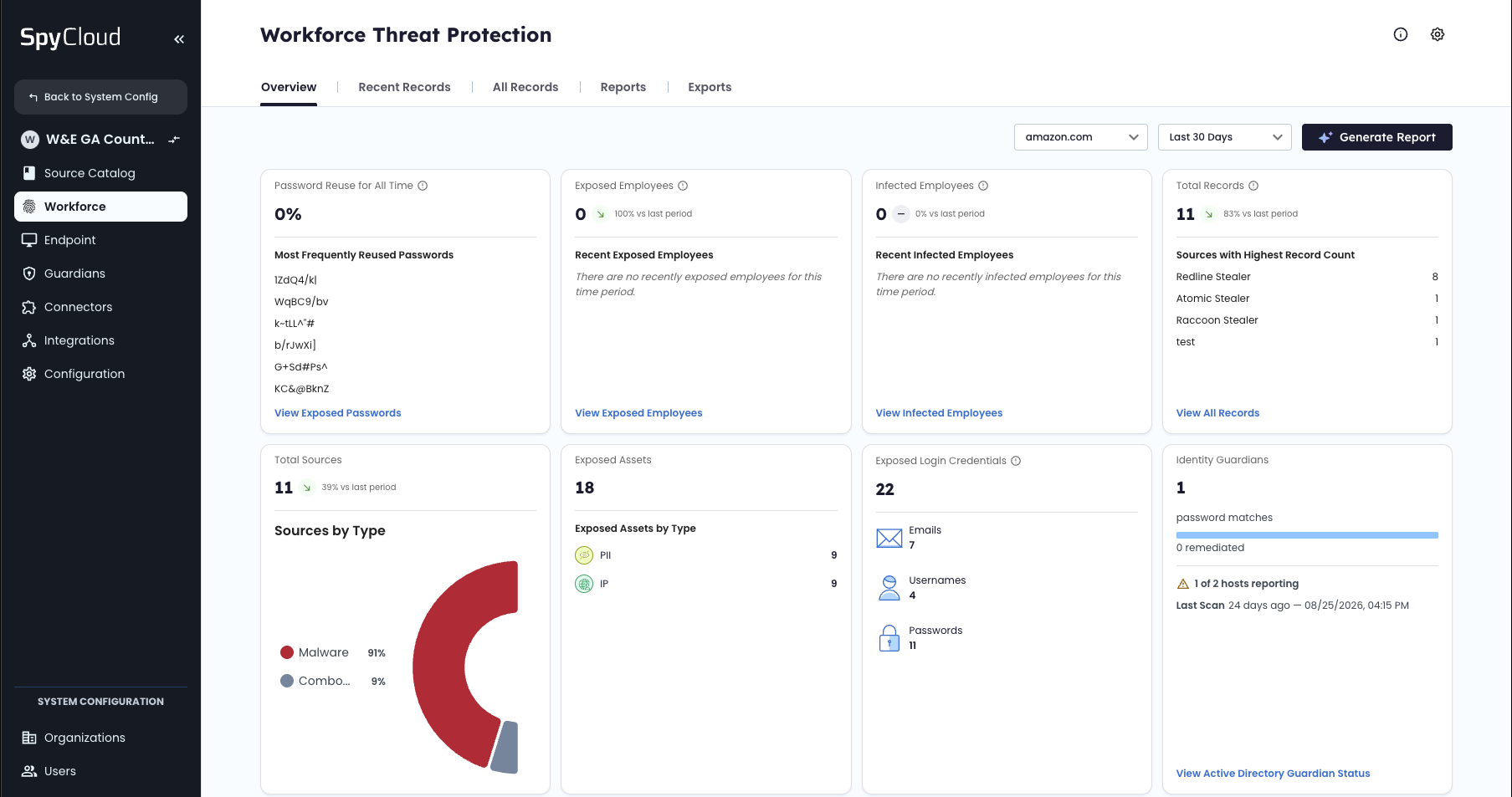
View a summary of recent ADG scans on the Workforce Threat Protection dashboard.
Monitor Active Directory Guardian from Workforce Threat Protection
The Workforce Threat Protection overview includes a Latest Active Employee Matches tile with information from your latest reported ADG scan.
Use this tile for a quick answer to three questions:
- When did ADG last scan my environment?
- How many exposed passwords did it match?
- How many matches have been resolved?
The tile includes:
| Field | What it tells you |
|---|---|
| Latest Active Employee Matches | The number of active employees associated with matches from the latest reported ADG scan. |
| Most Recent ADG Scan | The date and time of the most recent ADG scan reported to SpyCloud. |
| ADG Password Matches | The number of password matches identified by the scan. |
| Resolved Password Matches | The number of matches for which a configured remediation action was completed. |
About resolved matches
A resolved match means ADG completed the action associated with that match. It doesn't necessarily mean that ADG reset the user's password. The action depends on the remediation policy your organization configured and may include another supported response.
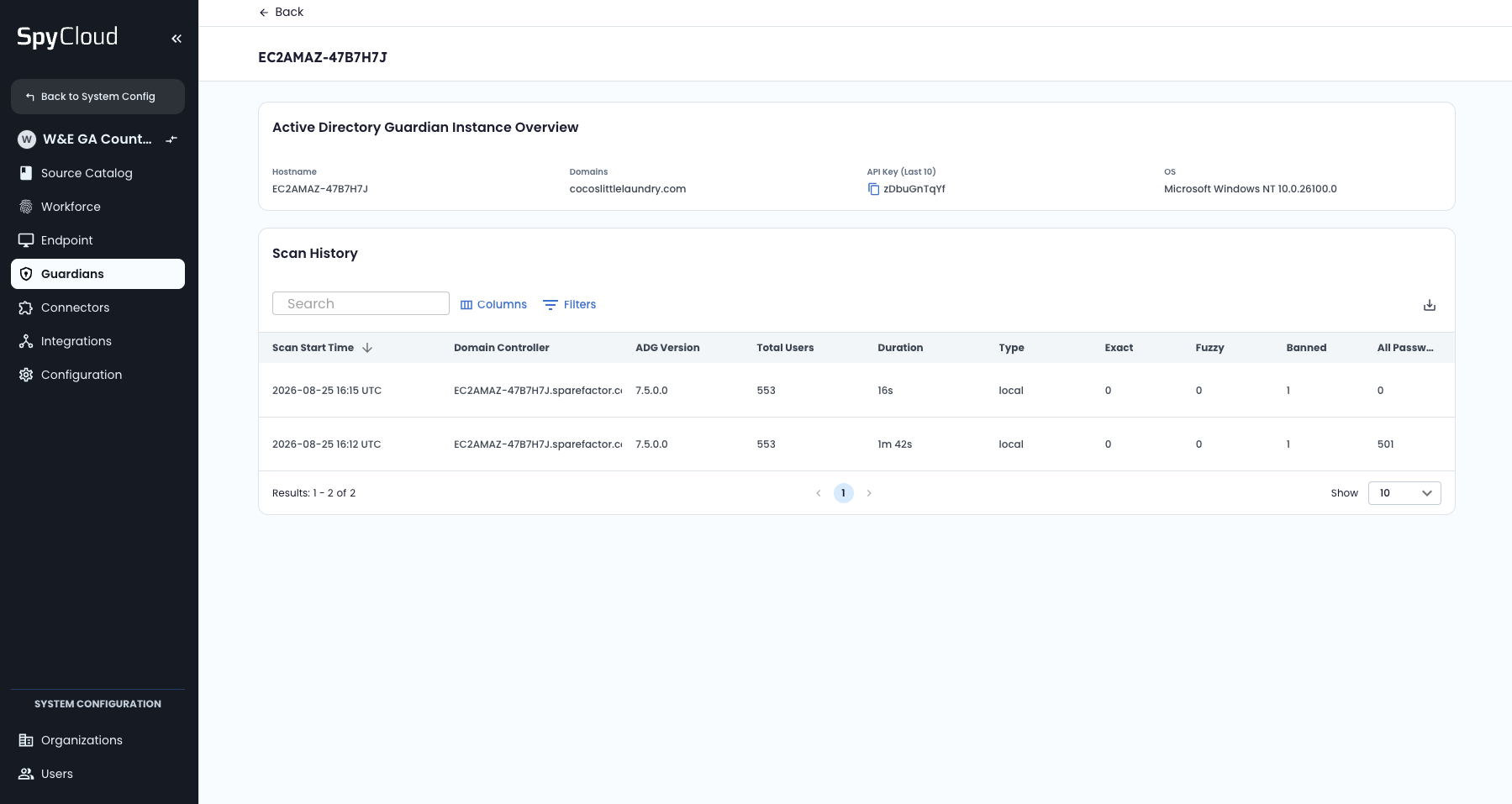
View your ADG scan history within the Identity Guardians module.
View detailed ADG telemetry
For more information about your ADG environment and individual scans, within the SpyCloud Console go to:
Identity Guardians > Credentials > Active Directory Guardian
The Active Directory Guardian view brings reporting from your ADG deployment into the SpyCloud Console so you can review host and scan activity from one place.
ADG host information
The host-level view provides information about the systems running Active Directory Guardian.
| Field | Description |
|---|---|
| Host Name | The hostname of the system running ADG. |
| Domain(s) | The Active Directory domain or domains associated with the ADG host. Multiple domains are displayed together when applicable. |
| API Key (last 10) | The last 10 characters of the SpyCloud API key used by the ADG host. Use this value to identify which key a host is using without exposing the full API key. |
| ADG Version | The ADG version currently reported by the host. |
| Last Scan Completion Time | The date and time the host most recently completed a scan. |
| Last Scan Duration | How long the most recent scan took to complete. |
| OS Version | The operating system running on the ADG host. |
| Total Users | The total number of users associated with the reported Active Directory environment. |
Identify an ADG host by API key
The API Key (last 10) field can be useful when you operate multiple ADG deployments. Compare the value shown for a host with your organization's API keys to identify which key the deployment is using.
To view and manage your organization's SpyCloud API keys, go to Connectors > API Keys in the Console.
See API Guidelines for more information.
View ADG scan details
Select an ADG host or domain to review its reported scan history. The ADG Scan Details table provides information about each reported scan.
| Field | Description |
|---|---|
| Scan Start Time | The date and time the ADG scan started. |
| Domain Controller | The domain controller associated with the scan. |
| ADG Version | The version of Active Directory Guardian that performed the scan. |
| Total Users Scanned | The number of Active Directory users included in the scan. |
| Runtime | How long the scan ran. |
| Exact | Number of exact password matches found during the scan. |
| Fuzzy | Number of fuzzy password matches found during the scan. |
| Banned | Number of passwords that matched your configured banned-password criteria. |
| All Passwords (NIST Global) | Number of passwords identified using the NIST Global password check. |
The match counts shown for each scan depend on the checks that were configured when the scan ran.
Understand password match types
The scan details separate results by the type of password check ADG performed.
| Match type | Description |
|---|---|
| Exact | The user's current Active Directory password exactly matched exposed password data associated with that employee. |
| Fuzzy | The user's current password matched a variation of an exposed password or, when configured, a variation of a banned password. |
| Banned | The user's current password matched a password in the banned-password list configured for your ADG deployment. |
| All Passwords (NIST Global) | The user's current password was found in SpyCloud's broader password dataset, regardless of which identity the password was originally associated with. |
The match types available for a scan depend on how the scan was configured. For more information about ADG's available scan and password-checking capabilities, see ADG Scan Options.
Export ADG reporting
You can export ADG telemetry from the SpyCloud Console for additional analysis or reporting. From the Active Directory Guardian telemetry page, use Export to download the available reporting data as a CSV file.
You can also use the CSV option in the Scan Details section to export scan-level information.
This can be useful when you want to:
- Analyze ADG activity outside the Console
- Share scan information with other teams
- Review scan history over time
- Incorporate ADG results into your organization's reporting workflows
What can I do in the local ADG application?
The SpyCloud Console gives you centralized visibility into ADG activity, but it doesn't replace the Active Directory Guardian application installed in your environment.
Use the local ADG application to configure and operate your deployment, including:
- Configure your Active Directory connection and SpyCloud API key
- Run manual scans, or configure automatic scanning
- Create and manage scheduled scans, and remediation policies
- Configure password-checking options, and scan and user notifications
- Generate and review local scan results, and ADG logs and diagnostic information
Updated about 3 hours ago