
Identity Guardians Session Revocation
HOW TO REVOKE EXPOSED SESSION DATA WITHIN ENTRA ID OR OKTA WORKFORCE
SpyCloud Identity Guardians can detect stolen active sessions and refresh tokens associated with your workforce and revoke them through your connected identity provider (IdP).
Session revocation is available for:
- SpyCloud Entra ID Guardian
- SpyCloud Okta Workforce Guardian
This guide explains how session revocation works, how to configure it in the SpyCloud Console, and how to choose the right remediation policy for your organization.
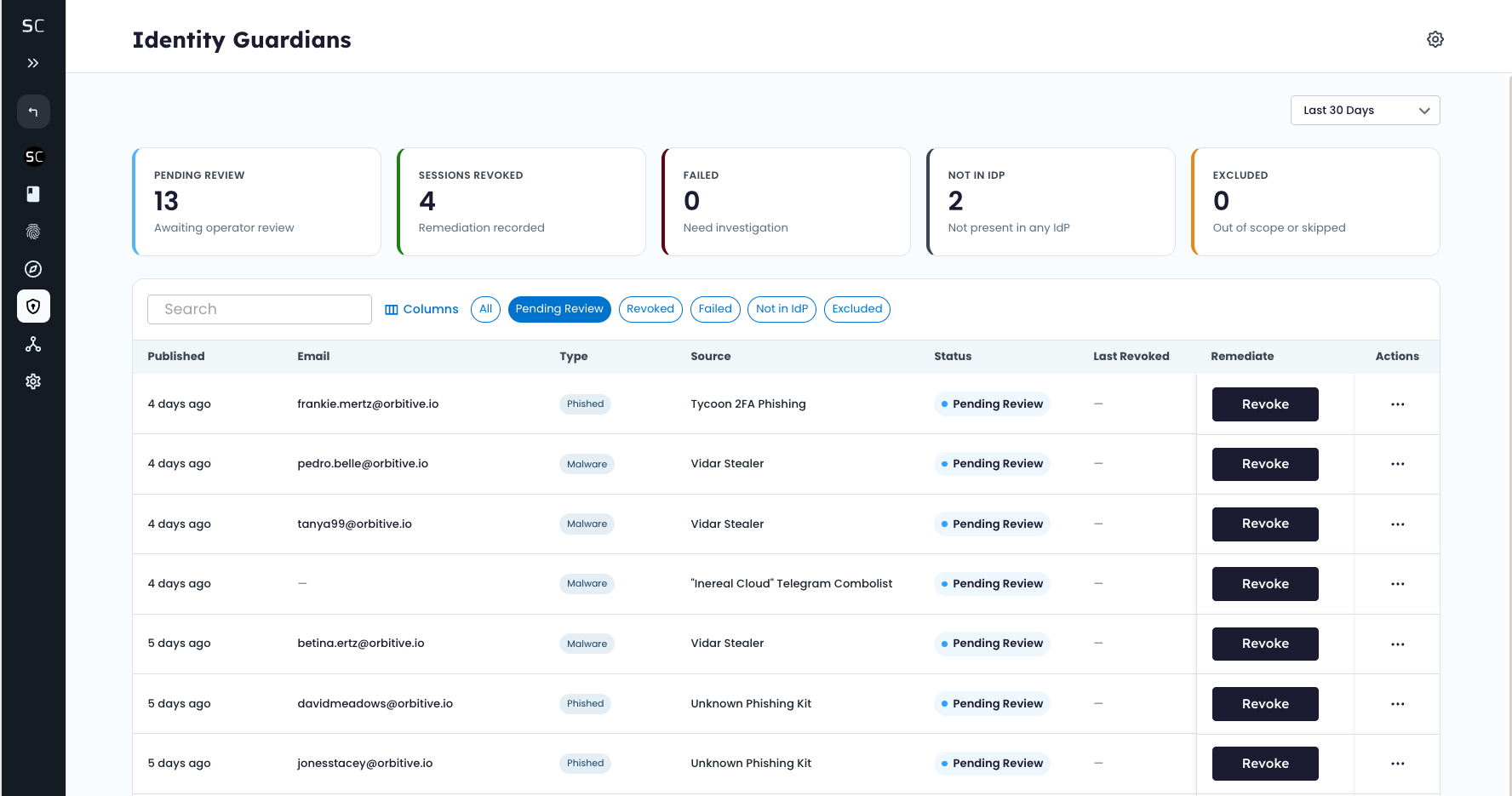
Review the list of exposed sessions to act on your compromised workforce identities within SpyCloud Identity Guardians.
🔍 Why Session Revocation?
Attackers don't always need a password to access an account. Infostealer malware and adversary-in-the-middle (AiTM) phishing attacks can steal active session cookies, refresh tokens, and other authentication artifacts that allow an attacker to maintain access to an account.
Resetting an exposed password doesn't necessarily terminate an active session. If an attacker has a valid session or refresh token, they may retain access after the password changes.
Session revocation closes this gap by terminating exposed sessions and refresh tokens through the identity provider, requiring the user to authenticate again.
SpyCloud identifies confirmed stolen access through Access severity records. For more information, see Identity Access – Severity 30 Records.
🧰 Before You Begin
To get up and running with session revocation workflows, you need:
- An active SpyCloud Workforce Threat Protection license
- Either SpyCloud Entra ID Guardian or Okta Workforce Guardian license
- Access to the Guardians module in the SpyCloud Console
- Entra ID or Okta Workforce IdP credentials and authorization to connect from SpyCloud
- The appropriate administrative permissions to establish the connection
You can configure one or multiple supported IdP connections based on your environment.
Active Directory GuardianSession revocation doesn't currently support Active Directory Guardian directly. See Active Directory Guardian v7.5 for information about its available remediation workflows in via Okta based on credential matches.
⚙️ How Session Revocation Works
When session revocation is enabled, SpyCloud monitors recaptured data for exposed authentication artifacts associated with your workforce for the last 90 days, including exposures from infostealer malware and 2FA-bypass phishing kits.
| Step | What happens |
|---|---|
| Detect | SpyCloud identifies exposed session cookies, refresh tokens, and other supported authentication artifacts in recaptured data. |
| Match | SpyCloud attempts to match the exposure to an identity in your connected IdP environment. |
| Evaluate | Identity Guardians applies your configured remediation policy to determine what action to take. |
| Revoke | When remediation is approved or configured to occur automatically, SpyCloud sends a revocation request to the connected identity provider and revokes the session (deletes session token and refresh token) |
| Notify | When configured, the affected user receives a daily notification about the remediation action. |
| Record | SpyCloud records the finding and remediation outcome in the SpyCloud Console Audit Logs. |
What if an identity isn't found?
If SpyCloud can't match an exposed identity to a user in the connected IdP, no revocation action is taken.
🚀 Get Started
1. Open Identity Guardians
In the SpyCloud Console, navigate to the Guardians module, and in the settings toggle on the appropriate service and revocation mode.
2. Connect Your Identity Provider
Connect the Entra ID and/or Okta Workforce environment where you want Identity Guardians to remediate exposed sessions.
You'll need the appropriate administrative access for your identity provider to authorize the connection.
A single organization can configure multiple supported IdP connections when needed.
Note: Findings will appear before you establish an IdP connection, but SpyCloud can't perform session revocation until the appropriate IdP connection is succesful.
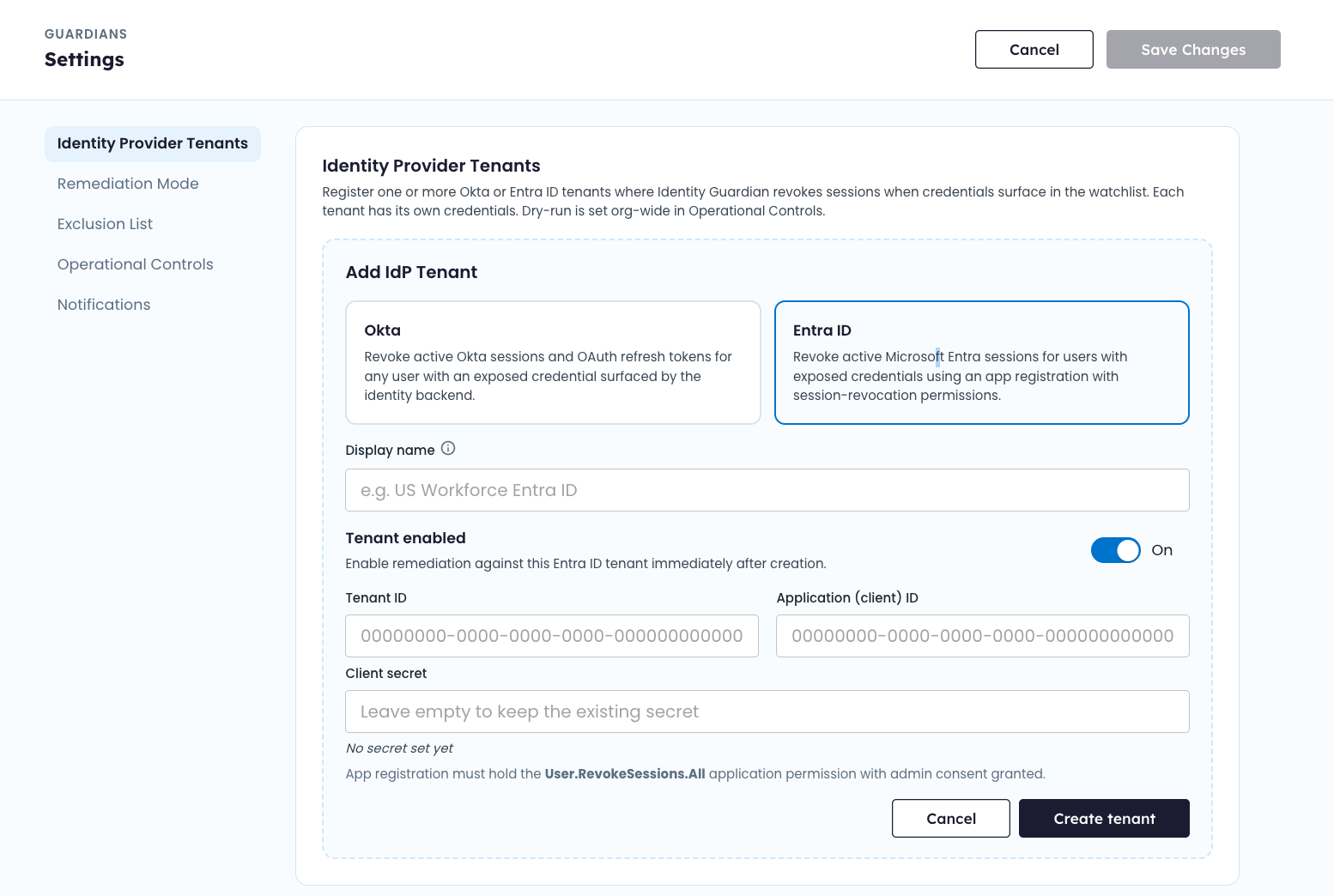
Connect to either Entra ID and / or Okta Workforce and configure your appropriate remediation policies
3. Configure Your Remediation Policy
Choose how you want Identity Guardians to handle confirmed matches.
| Mode | Behavior |
|---|---|
| 🧪 Dry run | Shows what Identity Guardians would do without sending a revocation request to the identity provider. |
| 👤 Manual | Holds eligible findings for review and approval before revoking the session. |
| ⚡ Automatic | Sends a revocation request automatically when a finding meets your configured policy. |
Recommended rolloutFor a new deployment, consider starting with Dry run to understand matching and expected remediation volume. Move to Manual remediation while validating the workflow, then enable Automatic remediation when you're comfortable with the results.
4. Configure Exclusions
Use the Exclusion Filter for identities that shouldn't be subject to automatic session revocation.
Depending on your environment, you may want to exclude:
- Service accounts
- Shared accounts
- Privileged or sensitive accounts
Excluded identities can still generate findings, but Identity Guardians won't automatically remediate them.
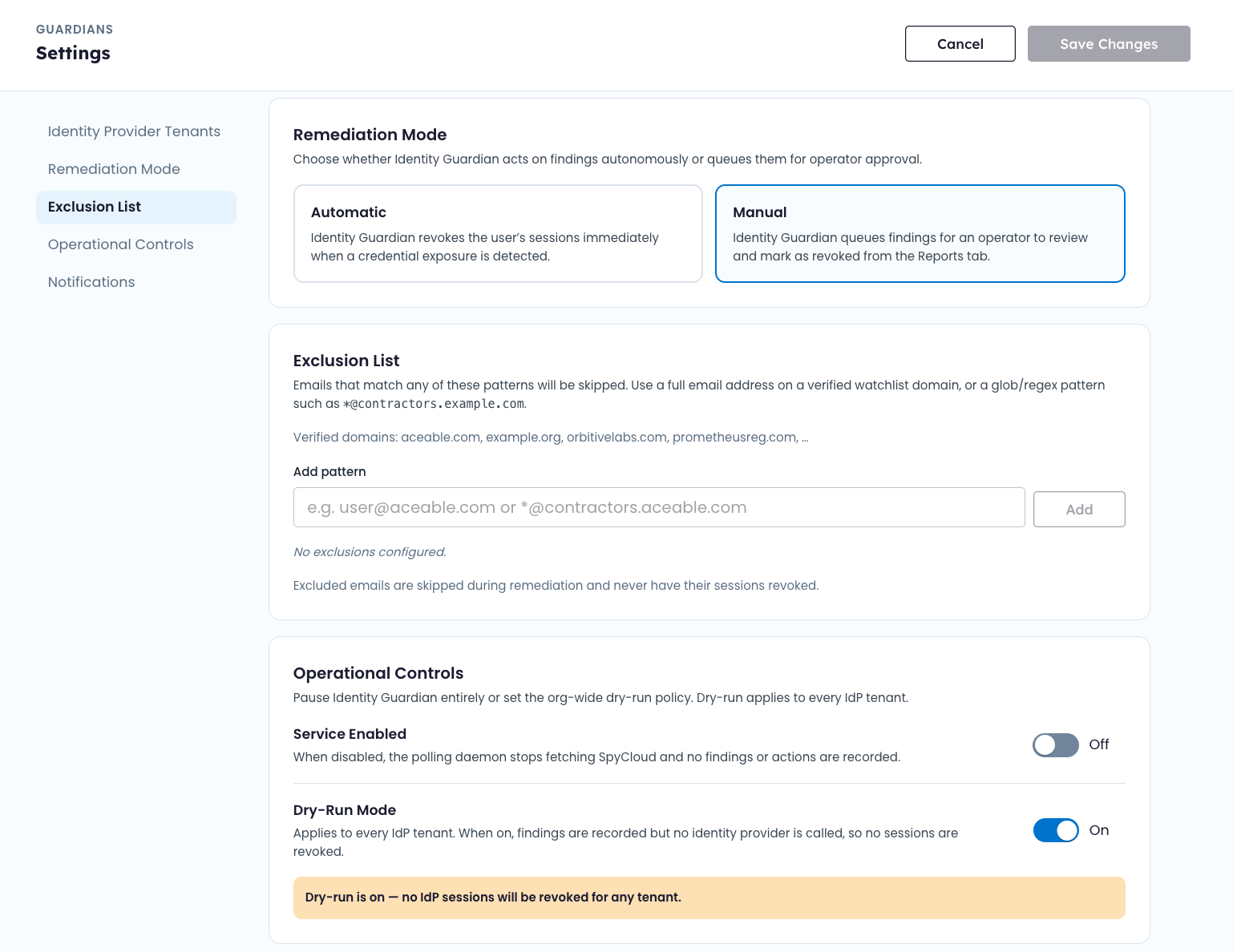
Control how you remediate. Test with Dry-Run, and move to Manual or Automated revocation when you're ready. Add emails to the Exclusion List for any identities who should be skipped from action.
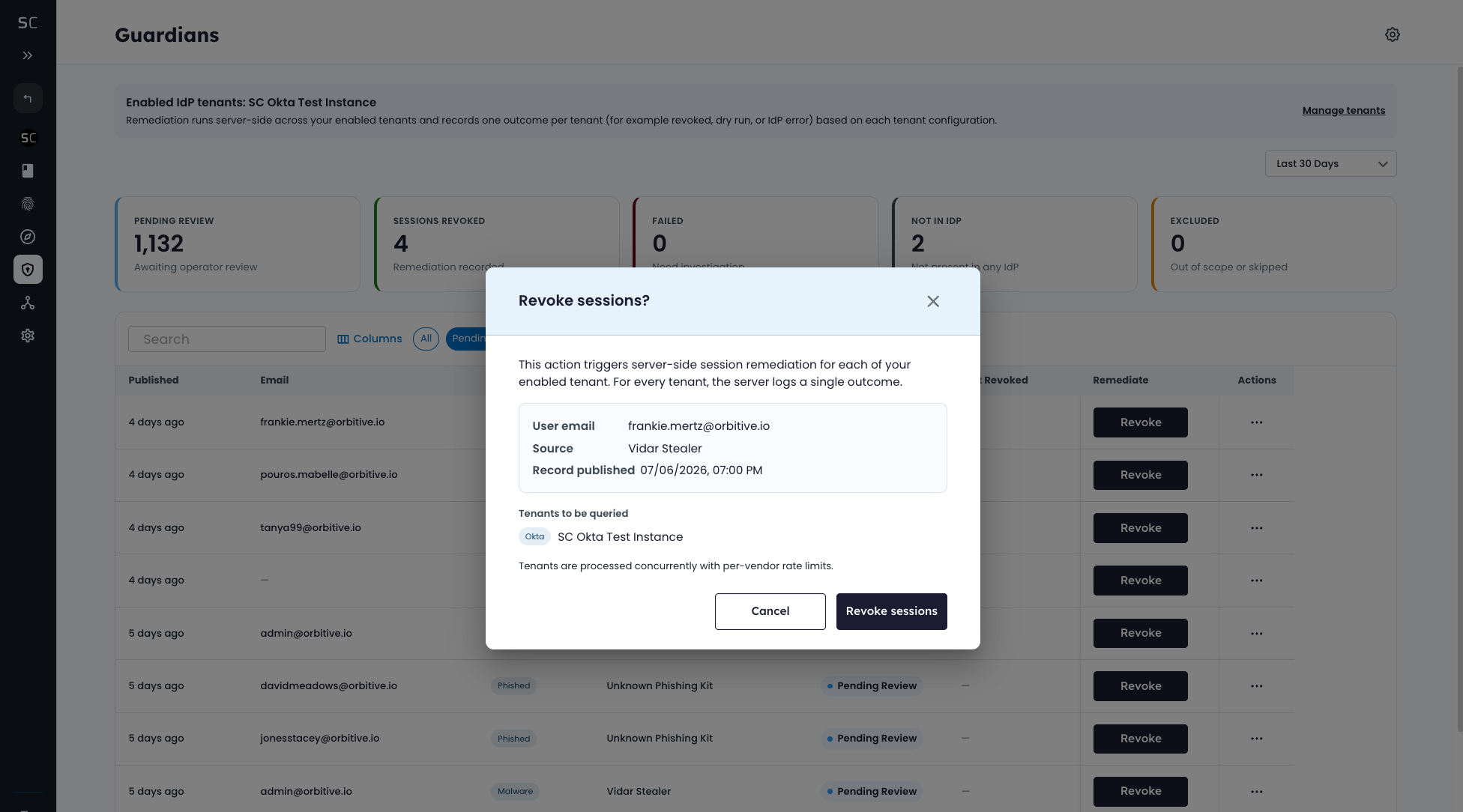
Confirm every action. Manually revoking sessions will call your IdP API and revoke sessions and refresh tokens.
📊 Reporting and Notifications
Use the SpyCloud Console to monitor session revocation activity and understand the outcome of remediation actions.
Audit Log
The audit log records activity associated with session revocation, including matches, decisions, and remediation actions.
For manually approved remediation, the log also records the action taken during the review process.
See SpyCloud Console Audit Logs for more information.
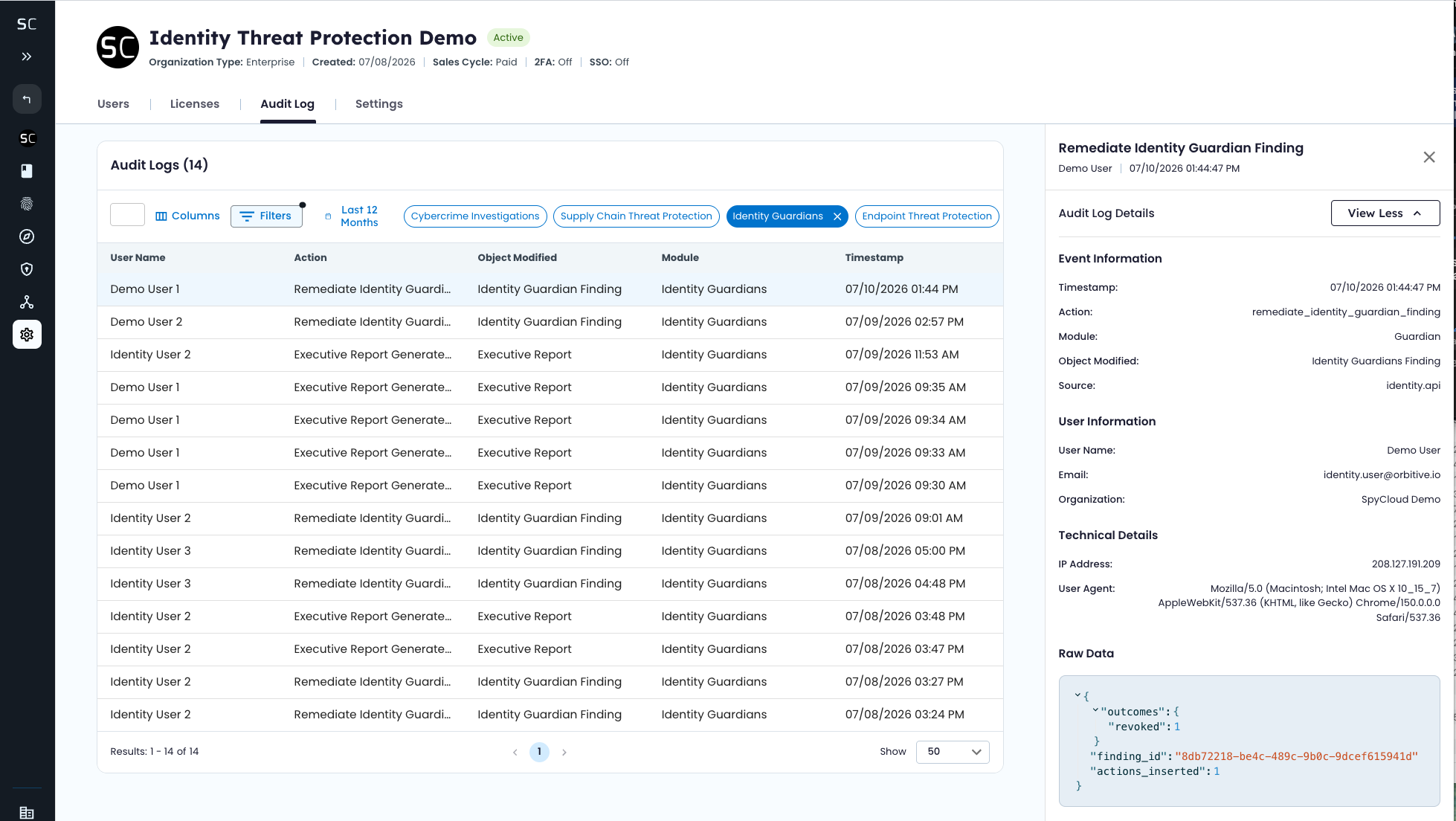
SpyCloud's Audit Log records every action taken when revoking exposed session data.
Remediation History
Each finding shows its remediation outcome, including partial results if revocation succeeds on one tenant but fails on another.
If needed, select Retry to run the revocation again only against tenants that haven't yet been successfully revoked.
Notifications
Configure notifications in the SpyCloud Console to keep the appropriate teams informed about session revocation activity.
Daily notification summaries can include:
- Revoked sessions
- Findings pending review
- Failed remediation attempts
- Activity broken out by IdP tenant
Recipients are configured in Settings.
✅ Scope of Session Revocation
Session revocation addresses stolen authentication artifacts, but it doesn't replace other identity remediation actions.
What Session Revocation Does
- Revokes the active session and refresh token at the identity provider for supported Entra ID and Okta Workforce environments
- Requires the user to reauthenticate after the affected session is terminated
What Session Revocation Doesn't Do
🔑 Reset an Exposed Password
Session revocation and credential remediation address different risks. If SpyCloud identifies an exposed password, use the appropriate Identity Guardians credential remediation workflow in addition to session revocation.
Credential remediation: Credential reset is controlled within your Azure application for Entra ID Guardian and your Okta Workflows for Okta Workforce Guardian.
💻 Terminate the User's Local Device Session
Session revocation applies to supported cloud authentication sessions. It doesn't log the user out of the operating system on their laptop or desktop.
🔗 Terminate Every Downstream Application Session
Applications connected through your identity provider may maintain their own sessions after initial authentication. Their behavior depends on the application's session and identity provider configuration.
For Okta environments, enabling Universal Logout in your Okta environment extends termination to connected applications.
📚 Learn More
For additional information about configuring and using Identity Guardians, see:
Updated about 1 month ago