
Infostealer Log Data
View, explore, and analyze Infostealer Logs within the SpyCloud Console
When an infostealer infects a device, the resulting log can contain data the malware captured from that device. In SpyCloud Investigations, you can view available log data, browse it by collection, run AI-assisted analysis, and export the raw log for use in other tools.
This guide explains how to open an infostealer log, review its contents, and analyze either the full log or an individual collection.
Availability: Viewing infostealer log data in the Console requires an Investigations Pro license.
View infostealer log data
You can open a log from an investigation when a record has an associated Log ID.
- Open an investigation.
- In Detailed Results, locate a record with a Log ID.
- Open the record menu and select View Log. You can also select the Log icon for the record to open the log directly.
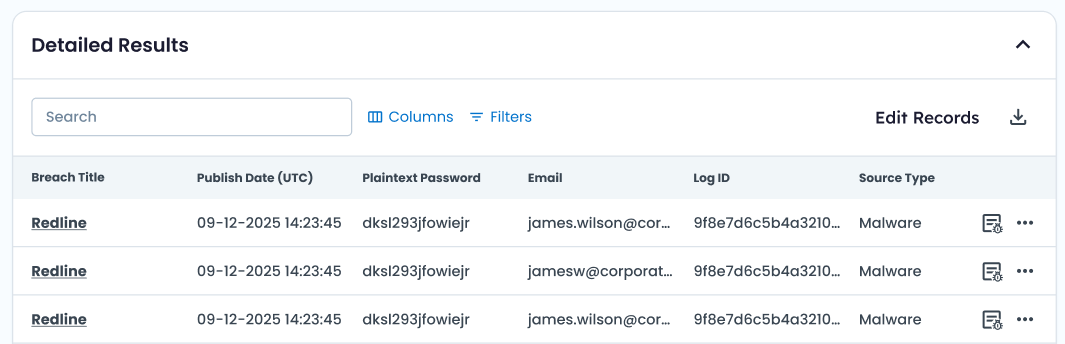
The Infostealer Log page opens with information about the infected device and the data available in the log.
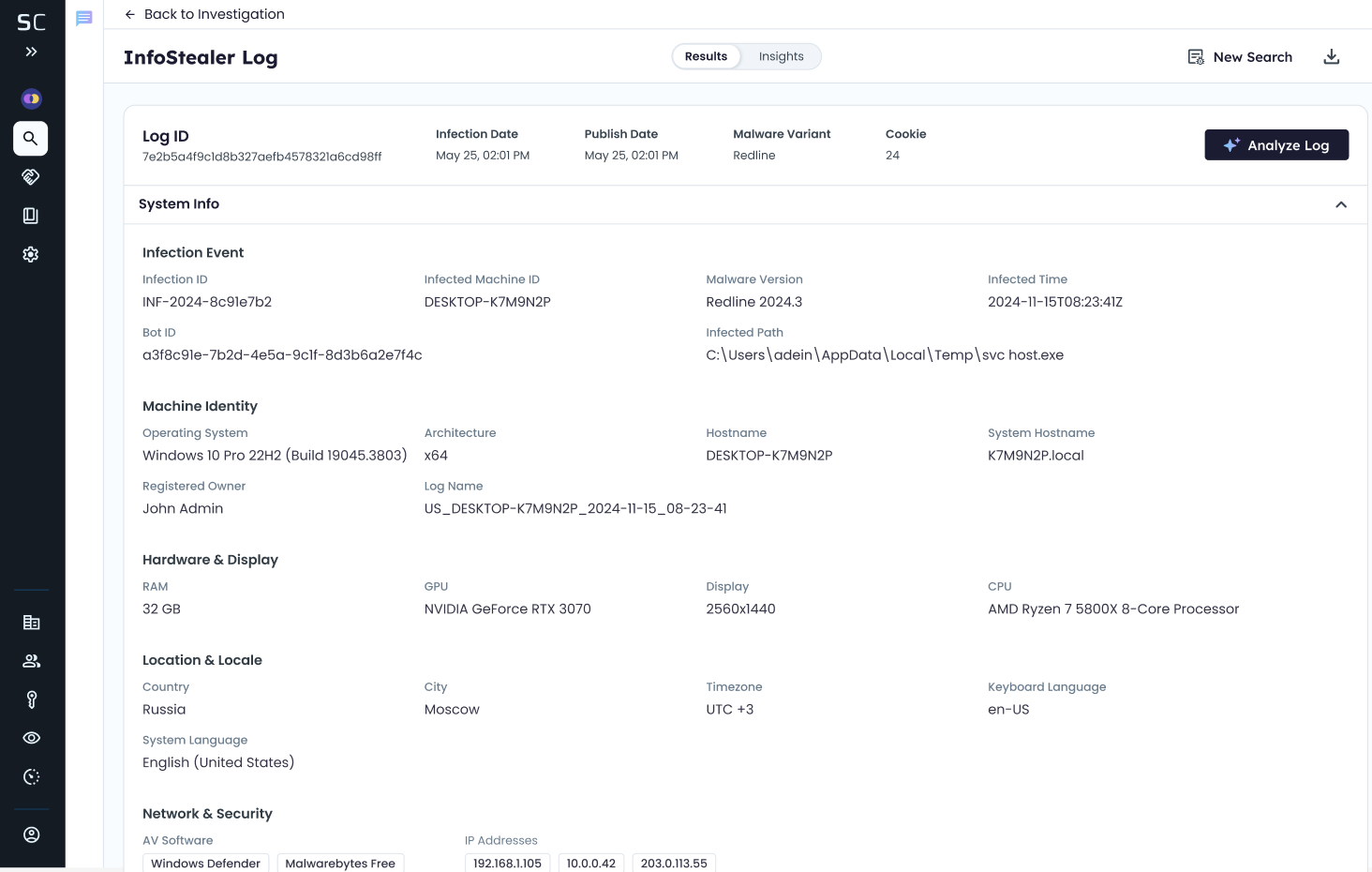
Understand the Infostealer Log page
Use the Results and Insights tabs at the top of the page to move between the log data and its AI-assisted analysis.
On the Results tab, you can:
- Review the Log ID, malware variant, and collection date in the log header.
- Select Analyze Log to analyze the available data across the log.
- Review available device and infection details under System Info, such as the bot ID, infected machine ID, operating system, hardware, hostname, location, infection time, registered owner, infection ID, and IP address.
- Browse captured data under Collections. The number next to each collection indicates how many records it contains.
- Select Expand All or Collapse All to open or close all collections.
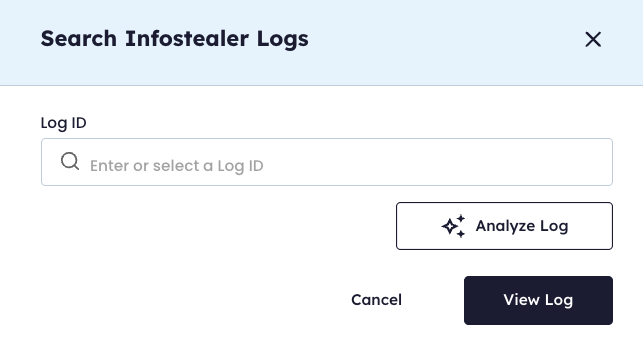
- Select New Search to search for another log by Log ID.
- Select the Download icon to export the raw log data.
Browse log collections
The Collections section organizes log data by data type. Expand a collection to view its contents. The collections available depend on the data contained in the log.
| Collection | What it contains |
|---|---|
| Credentials | Usernames, emails, and phone identities with passwords, which are masked by default, and the URL each was saved for |
| Cookies | Browser session cookie files. Select View Cookies to view the cookies contained in a file. |
| Autofills | Saved form-fill data such as names, emails, phone numbers, addresses, and search bar history |
| History | Browser history, with domain chips to filter by site |
| Exfiltrated Files | Files the malware pulled off the device, shown as a folder tree |
| Files | File listings captured from the device, including metadata only |
| Processes | Processes that were running at the time of infection |
| Software | Software installed on the device |
| Bookmarks | Saved browser bookmarks |
| Clipboard | Clipboard contents captured by the malware |
| Credit cards | Saved payment card data |
| Downloads | Downloaded file records |
| Keychain | Keychain entries |
Analyze an infostealer log
SpyCloud provides AI-assisted analysis at two levels:
- Log analysis analyzes the log as a whole.
- Collection analysis summarizes one collection within the log.
Choose the analysis level based on how much of the log you need to investigate.
Which analysis should I use?
Use Analyze Log for broader analysis across the available data in the log.
Use collection analysis when you want to focus on one type of data.
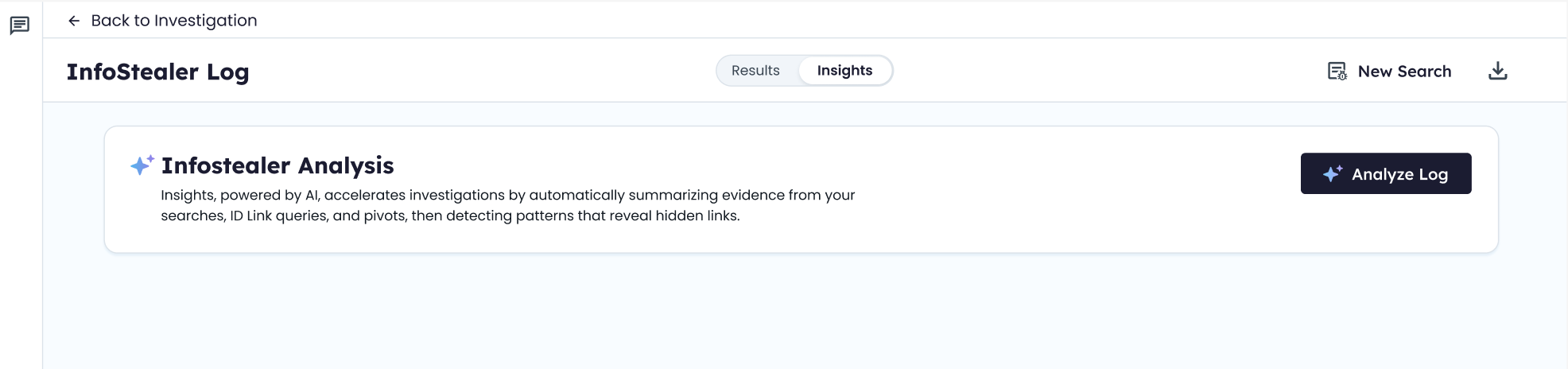
Analyze the whole log
Use Analyze Log when you want analysis across the available data in the log. You can start log analysis from Detailed Results or from an open log.
From Detailed Results
- Find the record you want to analyze.
- Open the record menu.
- Select Analyze Log.
- Review the generated analysis.
From the Infostealer Log page
- Open the log.
- Select Analyze Log in the log header.
- Select Insights to review the generated analysis.
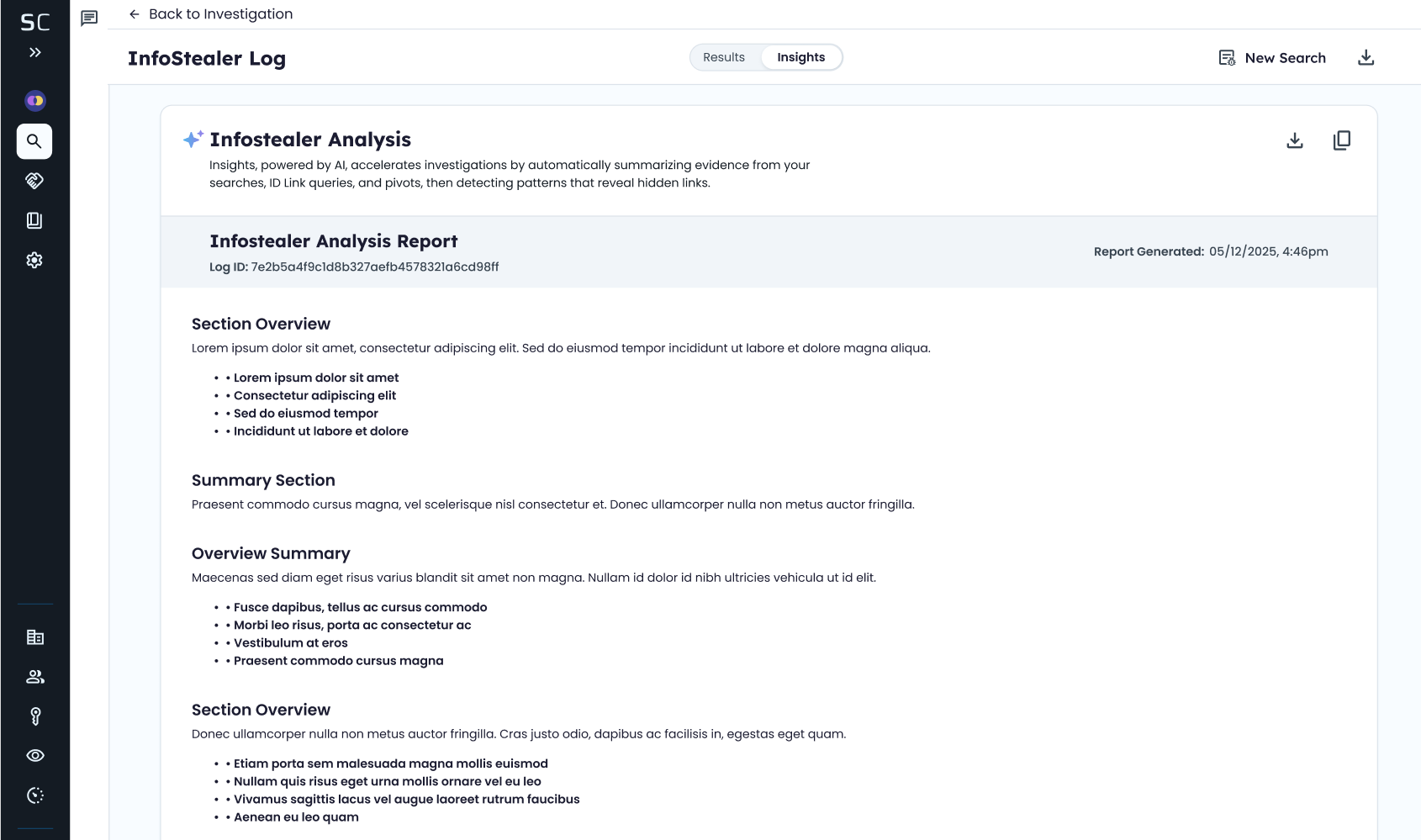
The analysis can include an executive summary, credential analysis, browser activity assessment, and risk recommendations.
Analyze a collection
Use collection analysis when you want a summary of one type of data instead of analysis across the full log.
- Open the log.
- Expand the collection you want to analyze.
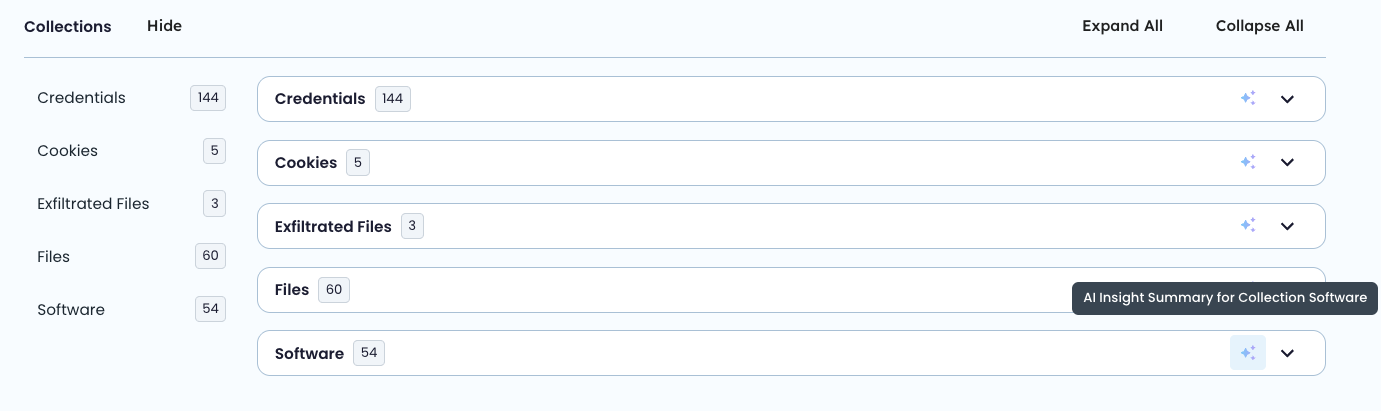
- Select the ✨ Sparkle icon in the collection header.
- Review the generated summary and key findings.
The analysis opens in a summary window for that collection.
Choose an analysis type
| If you want to... | Use |
|---|---|
| Analyze the available data across an infostealer log | Analyze Log |
| Review broader findings and recommendations from the log | Analyze Log |
| Quickly understand one data type | Collection analysis |
| Focus on a specific collection without analyzing the full log | Collection analysis |
| Work with raw log data outside SpyCloud | Export the raw log |
Export raw log data
Select Download at the top of the Infostealer Log page to export the raw log data for use in other tools and workflows.
Handle exported data carefully
An infostealer log can contain sensitive information, including credentials, cookies, payment card data, and personal information.
Things to know
- Logs are accessed individually. You open and analyze one log at a time using its Log ID.
- Not every record has a Log ID. Log data is available only when a corresponding Log ID is available for the record.
- Cookie contents open on demand. Select View Cookies to view the cookies within a cookie file.
- Files contain metadata only. The Console displays available file information, such as the file name, type, and size. Media is stripped from parsed logs.
- Log analysis is separate from the Research Agent. Analysis generated for an infostealer log doesn't carry over to Research Agent analysis.
- Log Availability. Log data is only available for records published after November 2024.
Access log data through the API
You can also access log data through the Infostealer Log API, which can be added to an Investigations API key. See the Infostealer Log API Guide.
Updated 4 days ago